PROMPT GUIDE
How to make YouTube thumbnails with AI (16:9 and space for text)
A thumbnail is a picture people glance at on a small phone screen before deciding whether to click. When making one with AI, prioritize a clear subject, readable text and a hint of what the video is about over a pretty picture. This guide covers framing and prompts that suit YouTube thumbnails, and the steps for adding text.
Last updated: approx. 3 min read
The short answer
When making a YouTube thumbnail with AI, generate a wide 16:9 image, place the person or main subject on the left or right, and leave empty space on the other side for text. Writing on the right third of the frame, empty space on the left in the prompt creates that space. Do not let the AI draw the text; add it later, big and bold, for a readable thumbnail.
How do you make a YouTube thumbnail with AI?
Use a wide 16:9 image, put the subject on one side and keep the other side empty for text, which you add later.
Thumbnail size and ratio rules are set by YouTube and can change, so check the official help for the latest recommendations. A wide 16:9 ratio is commonly used. When generating with AI, start with a ratio close to 16:9 (for example 1344x768) so important parts are not cut off when you crop later.
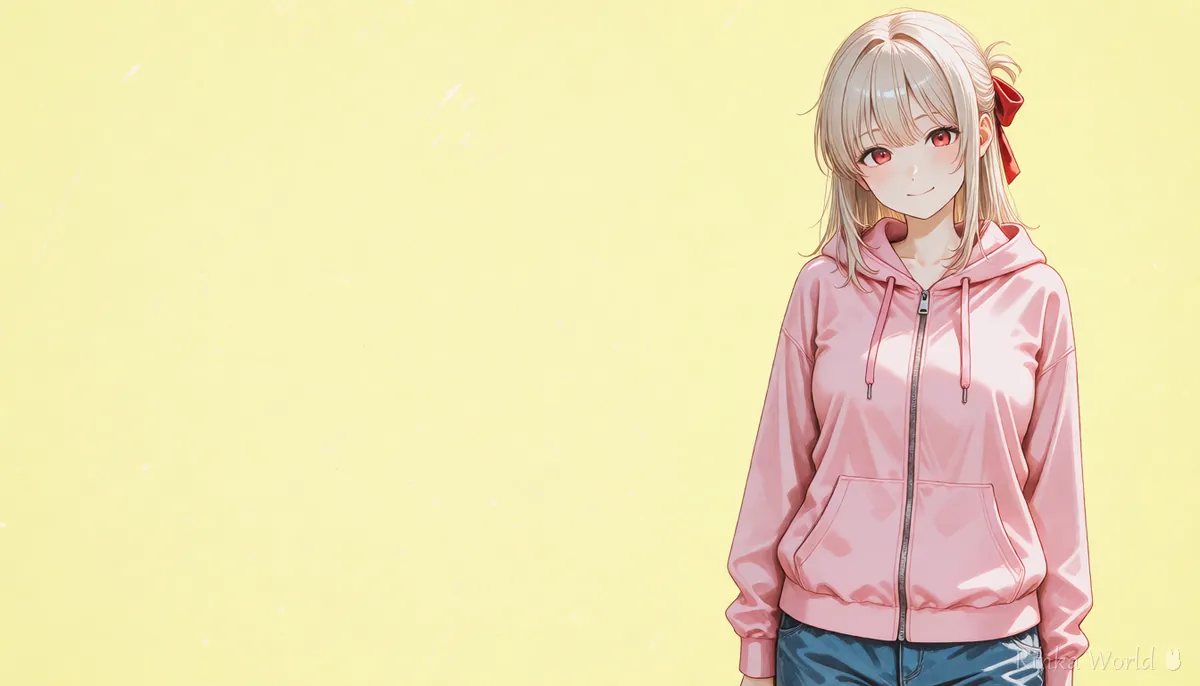
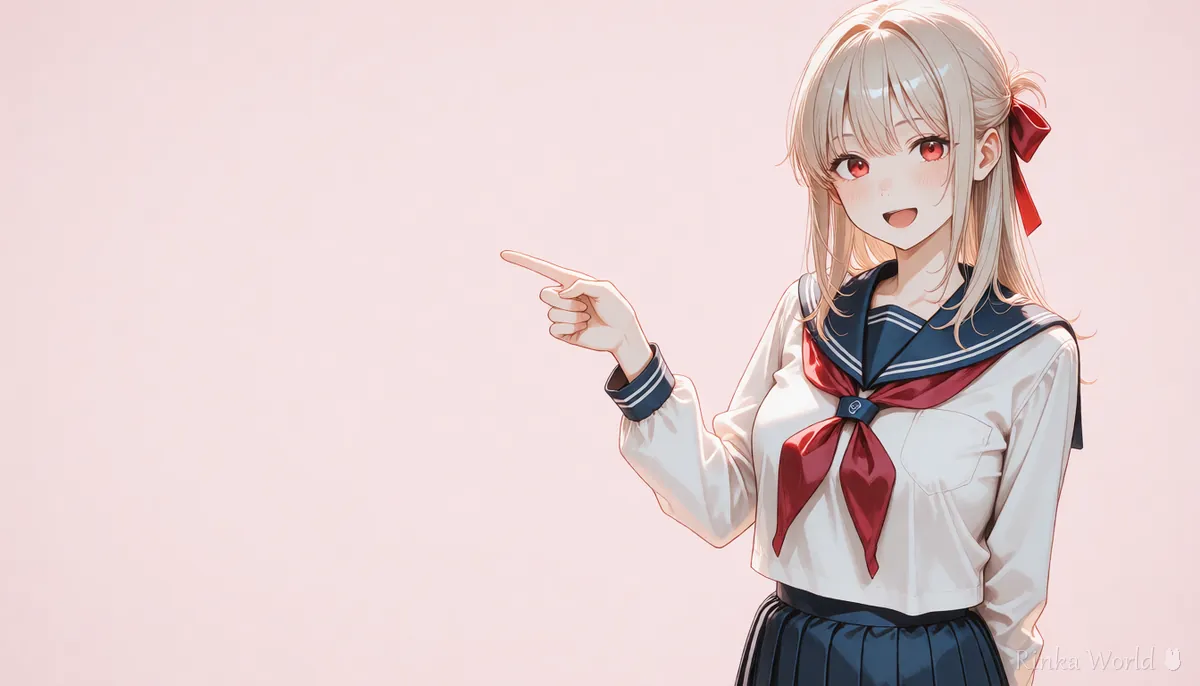
What are the steps to write a thumbnail prompt?
Steps to make a thumbnail with AI
- Decide the thumbnail text that sums up the video first (a few short words are easiest to read)
- Decide whether the text goes left or right, and place the subject on the opposite side
- Choose one expression (surprise, smile, worried face) that matches the text
- Make several wide images close to 16:9 and pick one whose face reads on a small phone screen
- Add the text big and bold in an image editor, with an outline or banner so it stands out from the background
- Finally check the text is readable when shrunk, and save with light compression
1girl, solo, surprised, open mouth, wide eyes, hands on own cheeks, upper body, on the right third of the frame, empty space on the left, simple pastel background, vivid colorsan anime girl with a surprised face pointing to the left, upper body, standing on the right side of a wide frame, the left half is a plain bright yellow background with nothing on it, bold clean colorsWhich expressions and framing catch the eye?
Big expressions and larger faces catch the eye. Matching the expression to the video's content also avoids disappointing viewers who click.
Rinka's tips
- Make the background behind the text plain or heavily blurred (simple background or depth of field)
- If the face is at least a third of the frame height, the expression reads on small screens
- Using the same character and layout every time gives your channel a consistent look
To find expression prompts (surprised, worried, smiling): Facial Expression Prompt List (Smile, Blush, Crying) →
What are the common thumbnail mistakes and fixes?
What should you watch when making thumbnails?
Avoid thumbnails that misrepresent the video, and images that imitate other people's works or celebrities. Check YouTube's official policies for thumbnail rules.
- Clickbait thumbnails that differ greatly from the content lower viewers' trust
- Do not use images that imitate real people or other people's characters
- Check the generation service's terms to see whether images can be used in monetized videos
- File size limits are set by YouTube, so check the official help and compress if needed
How to add clean text to thumbnails: How to Put Text in AI Images (Prompts That Avoid Garbled Text, and Adding It Later) →
Wide sizes close to 16:9 (such as 1344x768): SDXL Resolutions (Recommended Sizes) and How to Pick a Ratio →
To make a header image (eye-catch) for a blog post: How to make blog featured images with AI (OGP ratio and margins) →
FAQ
Frequently Asked Questions
What ratio should a thumbnail be?
A wide 16:9 is common. Generating close to 16:9 from the start means important parts are not cut when cropping. Recommended sizes can change, so check YouTube's official help.
Can AI add the thumbnail text too?
Text breaks easily, so adding it later in an image editor is recommended. Write no text in the prompt and let the AI create only the empty space for it.
How do I place the person on one side?
Write both the position and the side to keep empty, such as on the right third of the frame, empty space on the left. A simple background makes the empty space easier to use for text.
Which expressions suit thumbnails?
Clear expressions such as surprise, a smile or a worried face catch the eye. Choosing one that matches the video's content also prevents disappointment.
RINKA WORLD
Play in Rinka World
MORE