PROMPT GUIDE
How to make blog featured images with AI (OGP ratio and margins)
A featured image is the face of a blog post in post lists and when shared on social media. It gets cropped differently depending on your blog theme and the social network, so the composition has to work wherever it is cut. This guide covers ratios and framing that suit featured images, how to choose a picture that fits the post, and example prompts.
Last updated: approx. 3 min read
The short answer
When making a blog featured image (eye-catch) with AI, generate it at the wide ratio shown when the post is shared on social media (the OGP image), place the subject in the center and leave a little space around it. Keep text and faces away from the edges so they survive cropping. A picture that shows the post's content as one scene tells readers what the post is about even in a list.
How do you make a blog featured image with AI?
Match the wide ratio used when posts are shared, put the subject in the center and keep important things away from the edges.
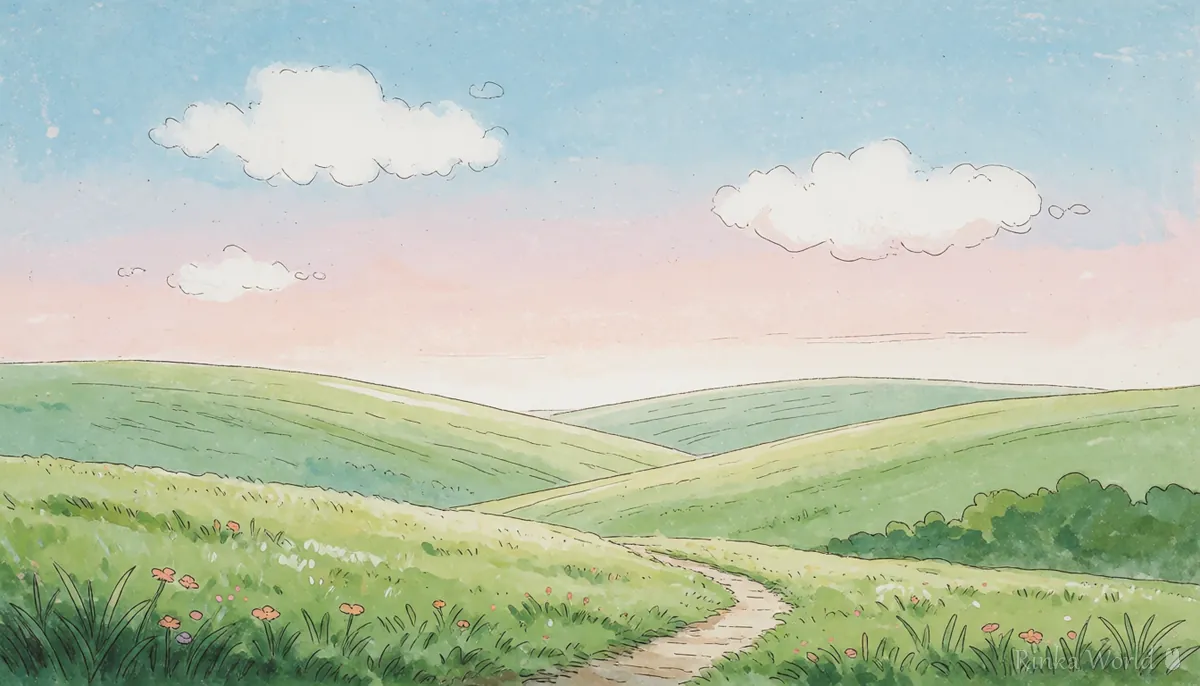
When you share a blog post on social media, it shows as an OGP image at a set wide ratio. The ratio and recommended size differ by social network and blog service and can change, so check the official guidance of the services you use. A wide ratio around 1.91:1 is commonly used. With AI, generating around 16:9 and trimming the top and bottom slightly is easy to work with.
What are the steps to make a featured image?
Steps to make a blog featured image with AI
- Check the recommended OGP ratio and size for your blog and social networks in their official guidance
- Turn the post's content into one scene (for example working on a laptop, studying in a cafe)
- Make several wide images with the subject centered and space around it
- Crop to the recommended ratio and check how it looks on social media with a crop simulator
- If you add text, put it large near the center (the edges may be cut)
- Compress to WebP or JPEG so the page stays light before setting it on the post
1girl, solo, sitting at a desk, laptop, smile, indoors, room, window, soft lighting, wide shot, centered, simple background, soft pastel colors, no texta wide flat illustration of an anime girl studying with a notebook in a cozy cafe, centered in the frame, plenty of calm space around her, soft pastel colors, no letters or signsHow do you choose a picture that fits the post?
Turn the post's content into one scene of who is doing what and where, and the picture will convey what the post is about.
Rinka's tips
- Keeping the same style and layout across your post list gives the whole blog a unified look
- Put faces slightly above center; the bottom may be covered by the title band in post lists
- Naming the image file with English words describing the content helps it get found in image search
To add a watermark or site name to a featured image: How to Add a Watermark to Images, with Tips for Social Media →
What are the common featured image mistakes and fixes?
What should you watch when using featured images?
Check the generation service's terms to see whether you may use images on blogs or posts with ads. Rules can change.
- Do not use images that imitate real people, brands or other people's characters
- Write a description of the picture in the image's alt text, not a list of prompt words
- Keep the original at a large size and shrink only the copy used in the post
To make video thumbnails: How to make YouTube thumbnails with AI (16:9 and space for text) →
To make an X header image: How to make an X (formerly Twitter) header image with AI →
Final checks before publishing or posting: The Complete Pre-Posting Checklist for AI Art →
FAQ
Frequently Asked Questions
What ratio should a featured image be?
Matching the OGP image ratio used when posts are shared is recommended; a wide ratio around 1.91:1 is common. It differs by service and can change, so check the official guidance.
Should I put text on a featured image?
If you do, place it large near the center and avoid the edges, which may be cut. Adding the text later rather than having the AI draw it is more reliable.
My featured image is heavy and slows the page.
Convert it to WebP or JPEG and shrink it to about 1200 pixels wide. You can also use a tool that converts it in the browser.
Can I use AI images on my blog?
It depends on the terms of the generation service you used. Check the official terms, including whether they may be used on posts with ads or on commercial blogs.
RINKA WORLD
Play in Rinka World
MORE