PROMPT GUIDE
How to Put Text in AI Images (Prompts That Avoid Garbled Text, and Adding It Later)
Posters, social media images, shop signs: there are plenty of times you want text in an AI illustration, yet it often comes out unreadable or scrambled. More image generators now claim to be good at text, but their strengths vary by service and version. This guide covers how to ask for text, how to fix garbled letters, and how to add text afterwards.
Last updated: approx. 3 min read
The short answer
To put text in an AI image, wrap the words in double quotes like "OPEN", keep them short, and say where and how big they should be. Long sentences and non-Latin scripts still break easily, so when accuracy matters, make the image without text and add the words afterwards in an image editor.
How do you put text in an AI image?
Wrap the words in double quotes and also say where the text goes and how big it is. The shorter the text, the more accurate it comes out.
Image generators remember letters as shapes, not as readable symbols, so long sentences and small text break easily. Scripts with many complex characters, such as Japanese, are generally harder than English. If you need the text to be exact, either choose a service known for text or make the picture and the text separately.
How do you ask for text so it does not get garbled?
Short, large, a fixed place and only one spot. Adding the text color and lettering style also makes it work as a design.
Steps to ask for text
- Narrow the text to a short phrase of 1–3 words.
- Wrap it in double quotes, like "CAFE".
- Decide where the text is (a sign, a T-shirt, the top of a poster) and write it.
- Describe the size and lettering style (large bold letters, hand-lettered, etc.).
- Generate several and pick the one with the most correct text.
- If one letter is wrong, redraw just that part or fix it in an editor.
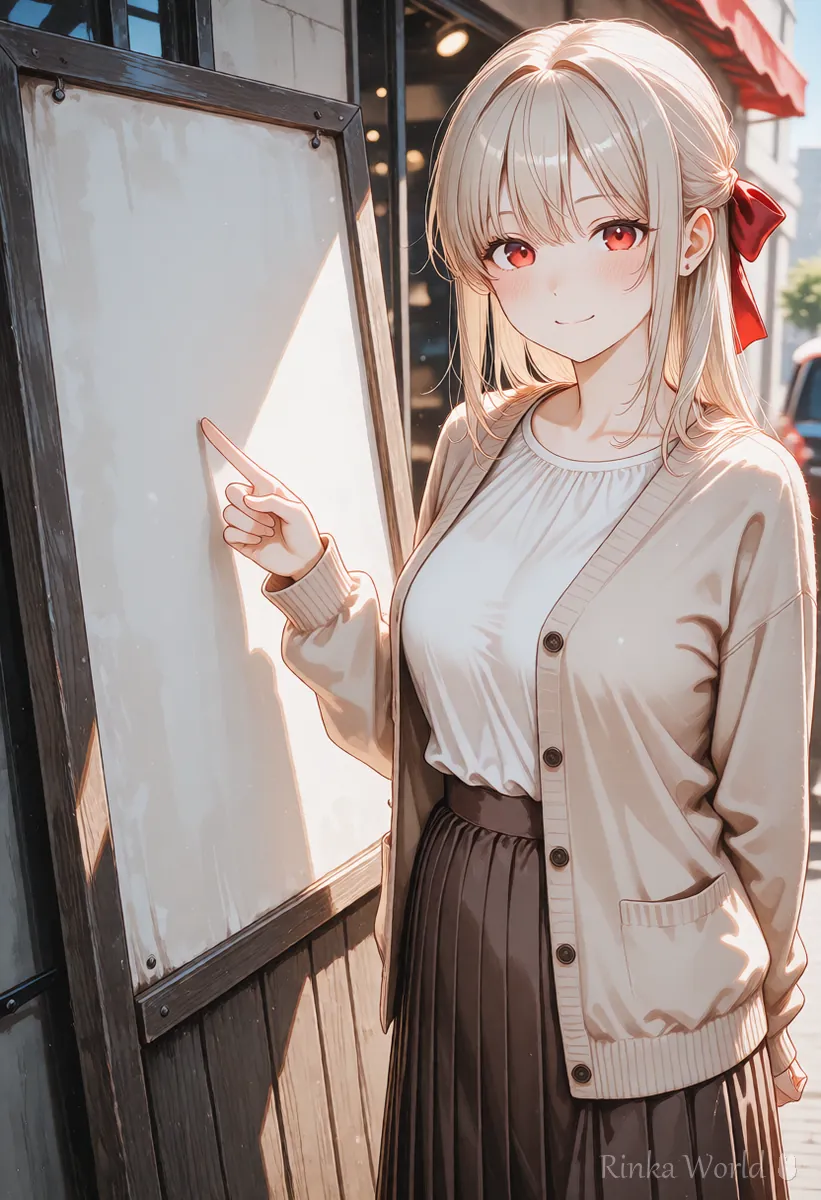
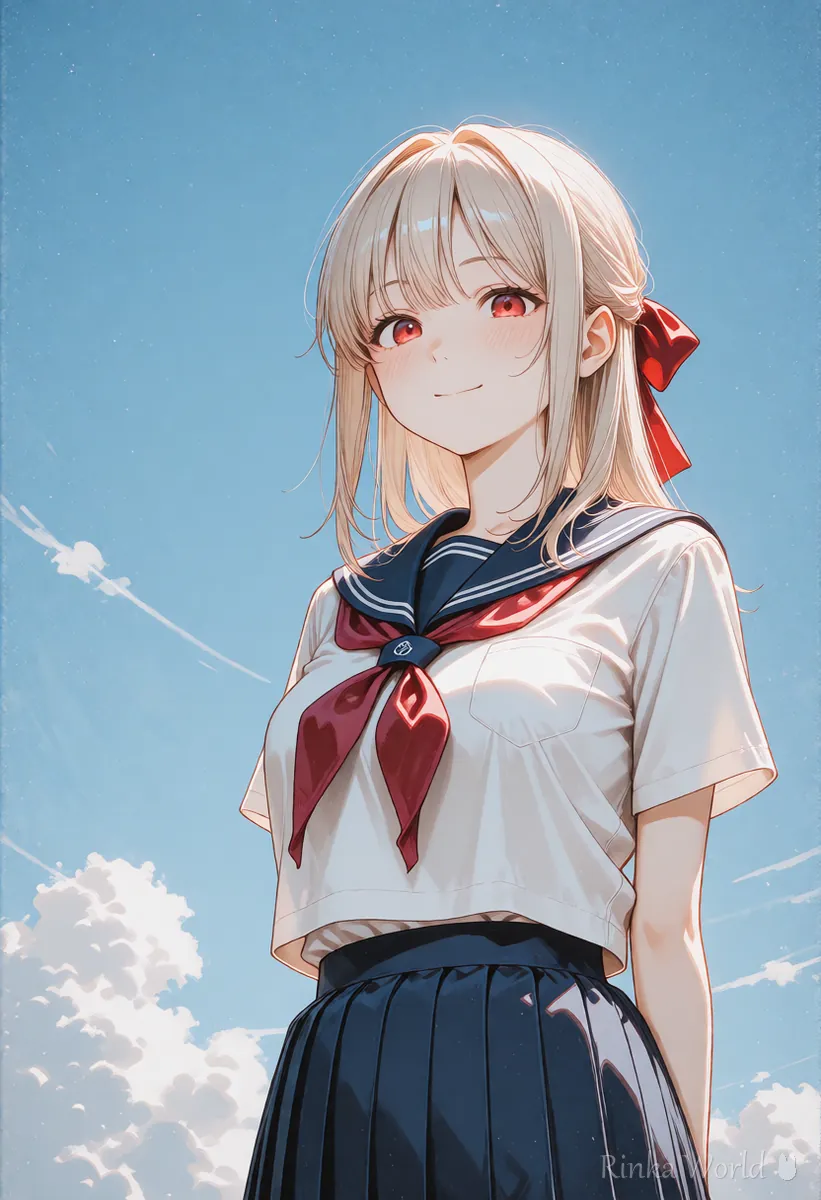
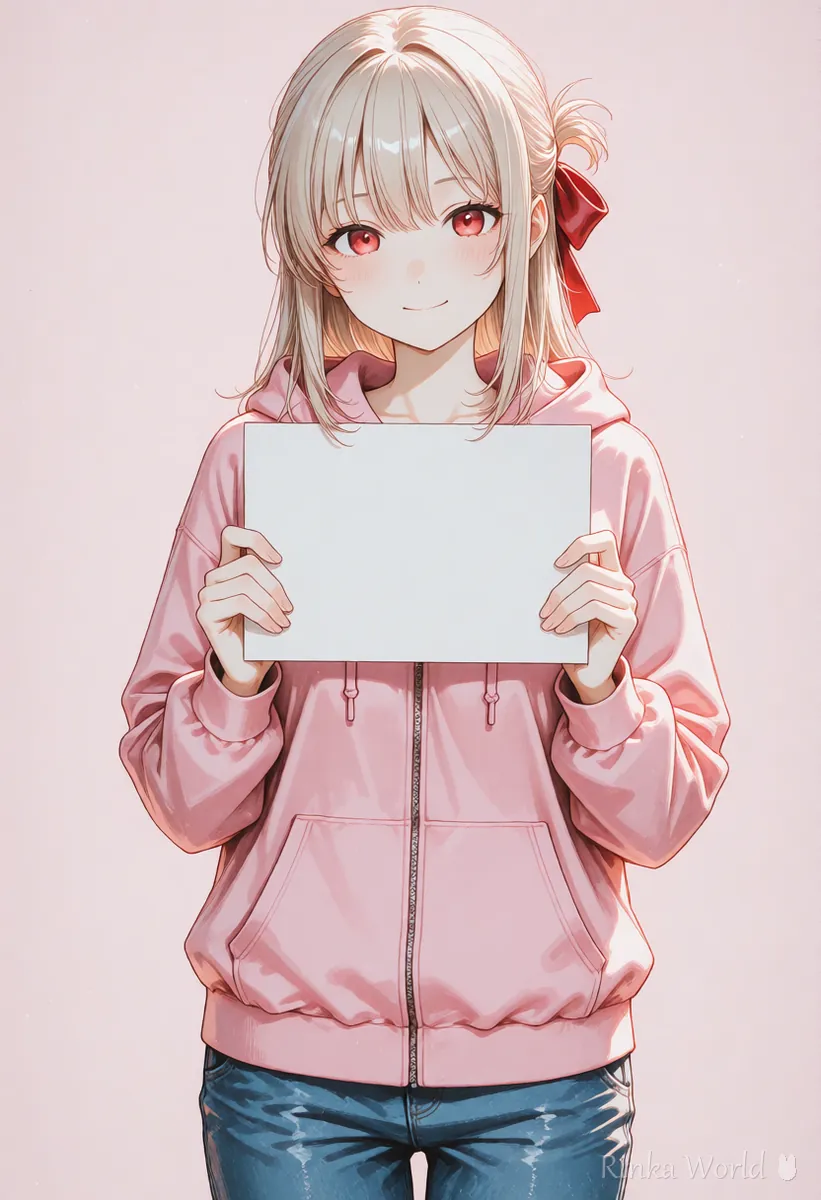
A cozy cafe storefront with a wooden sign above the door that says "CAFE" in large white hand-lettered letters, a girl with long black hair standing in front, anime illustrationA simple poster design with the big bold title "SUMMER" at the top, blue sky and white clouds, plenty of empty space at the bottom, flat illustrationAn anime illustration of a girl standing in front of a blank shop sign. Keep the sign completely plain with no writing, so text can be added later.Rinka's tips
- One text spot per image. Asking for text on both a sign and a T-shirt makes both more likely to break
- Short uppercase English words come out best. Other scripts can break even in short words
- Bigger text is more accurate. Small text tends to be drawn as a pattern
What if you need text in another language, such as Japanese?
Adding it afterwards is the most reliable. If you ask in the prompt, keep it to a very short word and generate many to choose from.
Some services say they support Japanese and other scripts, but accuracy changes between versions. For text where mistakes matter, such as a shop or event name, make the picture without text and add it in an image or design app. You can pick the font, which also makes it easier to read.
How do you add text afterwards?
First make a picture with space left for text, then place the text there in an image editor.
- Name the space you want empty: empty space at the top for text, plain sky on the right side
- Keep the area behind the text simple: plain signs, sky or walls make text easy to read
- Pick the text color from colors in the picture: a color extraction tool shows the main colors that will blend in
- Add an outline or shadow: on busy backgrounds, a white or black outline makes text readable
- For social media, place text where it will not be cropped away
What if the text still does not come out right?
The fix depends on the symptom. Find yours in the table.
How to ask ChatGPT for images and request fixes: How to Prompt ChatGPT for Images (Asking and Editing) →
How to fix images in conversation with Gemini: How to Prompt Gemini for Images (Conversational Edits) →
FLUX prompts written in natural English: How to Write FLUX Prompts (in Natural English) →
AI image generator comparison, including services good at text: AI Image Generators Compared (How to Choose by Type) →
FAQ
Frequently Asked Questions
Why does text get garbled in AI images?
Image generators remember letters as shapes rather than meaningful symbols, so long sentences and small text break more easily.
Which AI image generator is best at text?
Several services are said to focus on text rendering, but how good they are changes with each version. Check each service's official information for the current state.
Can AI put Japanese or other non-Latin text in an image?
Short words sometimes come out, but they still break easily. For text where mistakes matter, make the picture without text and add it in an image editor.
How do I get the AI to leave space for text?
Write the space you want, such as empty space at the top for text. Scenes with a simple area behind the text, like sky, a plain wall or a blank sign, are easiest to use.
RINKA WORLD
Play in Rinka World
MORE