PROMPT GUIDE
How to Use Canva AI Image Generation (Make Pictures for Social Media)
Canva has an AI image generation feature that makes a picture from a sentence you write. A convenient point is that you can place the picture straight into a design, add text on top, and export it for a social media post or a thumbnail. This guide explains how to ask, how to choose a ratio, and the flow for adding text.
Last updated: approx. 3 min read
The short answer
With Canva AI image generation, you open the image generation feature from the design screen, write the picture you want, choose a style and make it. You can place the result straight into the design, add text and export it. Feature names, the free range and commercial-use terms change with plans and time, so check the official guide.
What is Canva AI image generation, and what can it make?
It is a feature that makes an image when you write the picture you want in a sentence, and you can use the result in a design as it is.
Canva is a service for creating designs. It has a feature for making images with AI: when you write the picture you want, several candidates appear. You can place the picture in a design, layer text and shapes on it, and export it as a social media post, a thumbnail, a document and so on. Feature names, what you can use and how much is free can change with your plan and the time, so check the official guide.
What are the steps for making an AI image in Canva?
Steps for making a picture and placing it in a design
- Log in to Canva and create a new design in the form you want (post, thumbnail and so on)
- Open the AI image generation feature (an app or a generation item). The name can change, so check the official guide
- Write the picture you want and choose a style if there is one
- Choose the ratio (square, vertical or wide) to fit where you will use it
- Choose the picture you like from the candidates and place it in the design
- Layer text and shapes, tidy it up and export it
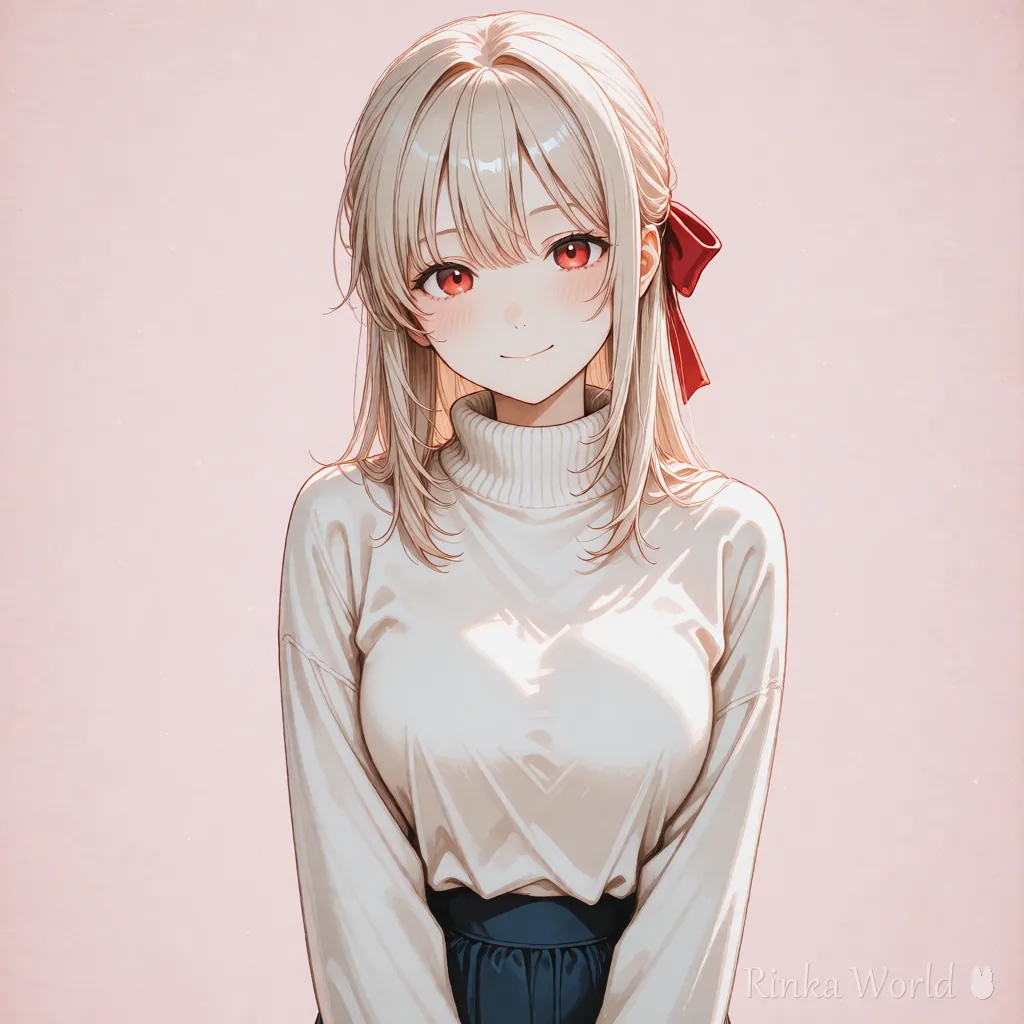
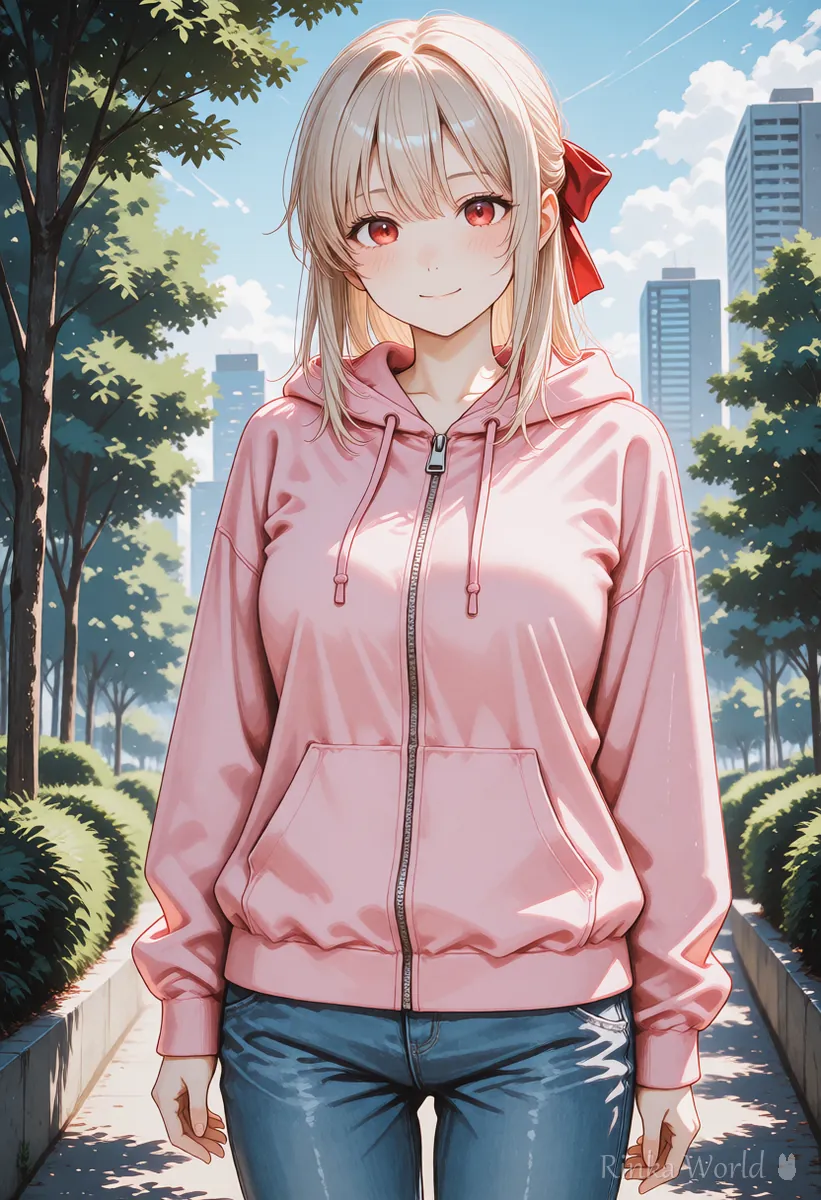
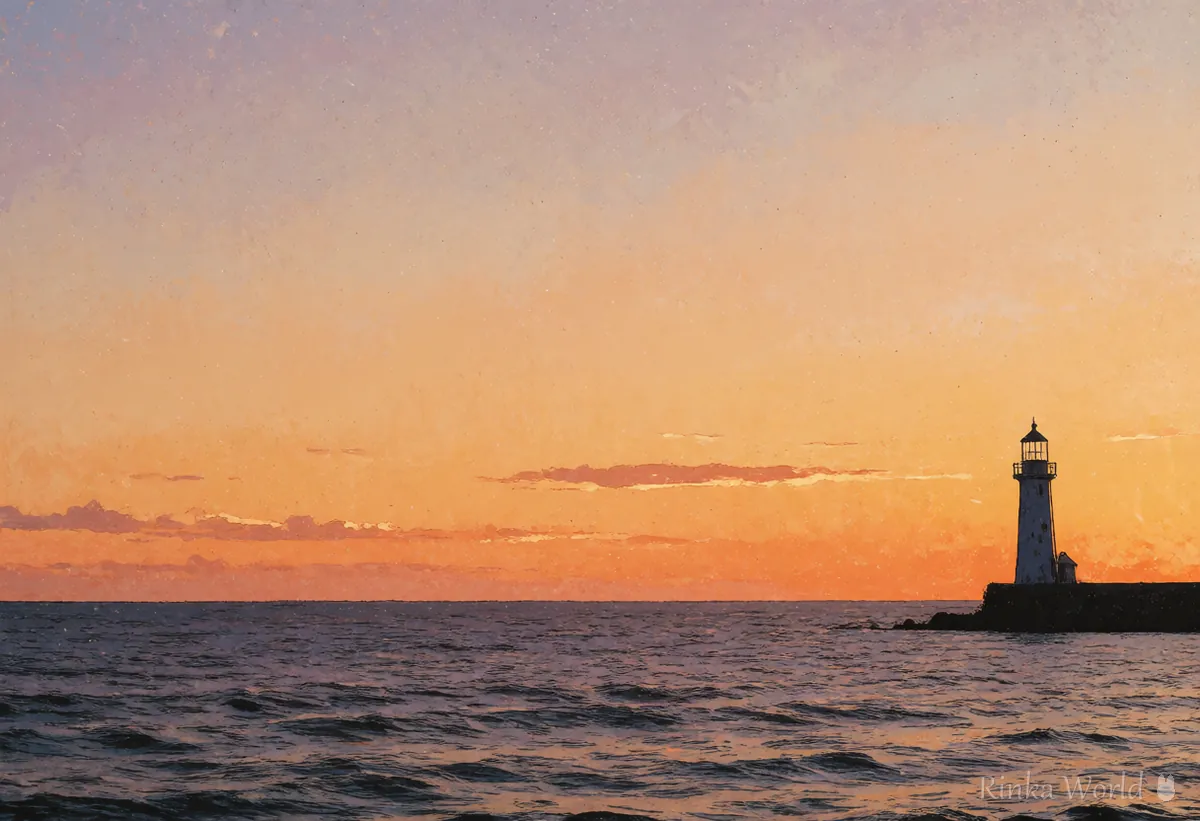
An anime-style girl in a school uniform sitting on a bench in a spring park, reading a book. Soft light, pastel colors.A seaside landscape at sunset. No people. A wide sky and a small lighthouse in the lower right. Watercolor style.What is the trick for asking in your own language?
Write briefly who is where doing what, then add one mood or art style at the end, and you are more likely to get the picture you imagined.
- Write the main subject first (a girl in a school uniform, a lake landscape and so on)
- Add one item each for place, time and weather (a spring park, evening, cloudy and so on)
- Use only one art style (anime style, watercolor style, pastel colors and so on)
- When you want text, do not have the picture include the text. Layer it on afterward
- When you make several pictures in the same style, keep a note of the words you used
What if the picture does not turn out as you wanted? (Common failures and fixes)
The main causes are words that are too long, too many elements, and having the picture include text.
Whether you can use a generated image commercially, and whether you must label it as AI-generated, is set by the terms of the service and your plan. Always check the official terms of use before you use it.
What is the flow for finishing a picture for social media or a thumbnail?
After placing the picture, match the empty space for text, the colors and the size, and then export it.
Steps for finishing
- Place the picture and check that there is empty space on the side where the text will go
- Layer the text in a color that stands out clearly against the background
- Match colors and shapes with your other posts to give a sense of a series
- Choose the export format (image, PDF and so on) to fit where you will use it
- Shrink it and check that it is still readable on a small phone screen
- When you make several pictures in the same style, keep a note of the words used for the first picture
- For a picture with a person, check before exporting that the face is not cut off
For how to put text into a picture, see How to Put Text in AI Images (Prompts That Avoid Garbled Text, and Adding It Later) →
For making YouTube thumbnails, see How to make YouTube thumbnails with AI (16:9 and space for text) →
For making blog eye-catch images, see How to make blog featured images with AI (OGP ratio and margins) →
For items to check before commercial use, see What to check before using AI images commercially (reading the terms) →
FAQ
Frequently Asked Questions
Can I use Canva AI image generation for free?
The free range and number of uses change with your plan and the time. Check the official Canva guide before you use it.
Is it fine to write the prompt in my own language?
You can ask in your own language. Write briefly who is where doing what and add one art style, and you are more likely to get the picture you imagined.
Can I put text inside the picture?
If you make the AI draw text it breaks easily, so it is more reliable to make a picture without text and layer it with the Canva text feature.
Can I use the generated image commercially?
It is set by your plan and the terms of use. Conditions can change, so check the official terms before you use it.
How do I decide the ratio for social media?
Choose from square, vertical and wide to fit where you will use it. The recommended size for each social network changes, so check the official help too.
RINKA WORLD
Play in Rinka World
MORE