PROMPT GUIDE
How to make an X (formerly Twitter) header image with AI
The header image is the large wide picture people see first when they open a profile. The visible area differs a little between phones and computers, and the profile icon overlaps the lower left. This guide covers framing for X headers, how to prompt the AI and how to check where the image gets cut.
Last updated: approx. 3 min read
The short answer
When making an X (formerly Twitter) header image with AI, use a very wide ratio, put important things in the center, and keep the top and bottom edges and the lower left (where the icon overlaps) empty. Making scenery or a pattern the star, with any person small and to the right, holds up even when cropped. Recommended sizes can change, so check X's official help.
How do you make an X header image with AI?
Make it as wide as you can, place the main subject slightly right of center, and keep the top and bottom edges and the lower left empty.
X headers are shown at a ratio even wider than a normal wide 16:9 image. Recommended sizes can change, so check X's official help before you start. Image generators can struggle with very wide ratios, so a safer method is to generate around 16:9 first and trim the top and bottom. Ask the AI not to put anything important in the strips that will be trimmed.
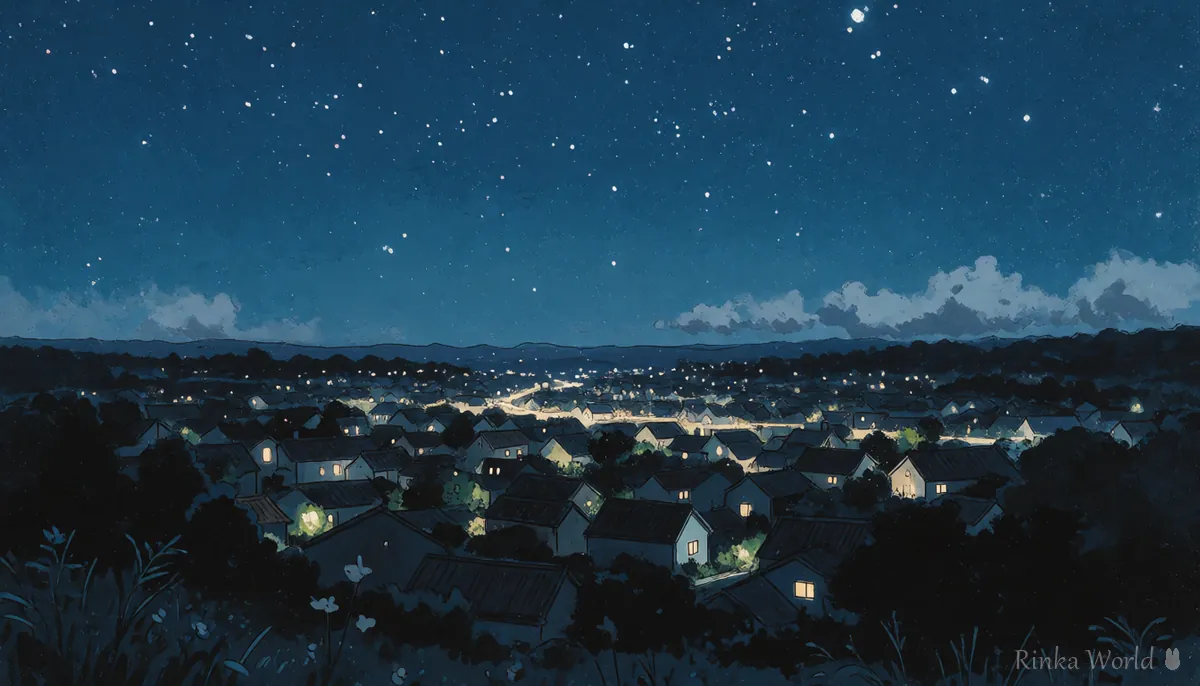
What are the steps to make a header image?
Steps to make an X header image with AI
- Check the current recommended size in X's official help
- Choose a theme (seasonal scenery, a favorite color, your character small in the frame and so on)
- Generate around 16:9, with the subject from the center to the right and the top, bottom and lower left empty
- Trim the top and bottom to the recommended ratio (check how it crops with a crop simulator)
- Make sure nothing important is hidden when the icon overlaps the lower left
- View it on both a phone and a computer to confirm the edges can be cut safely before setting it
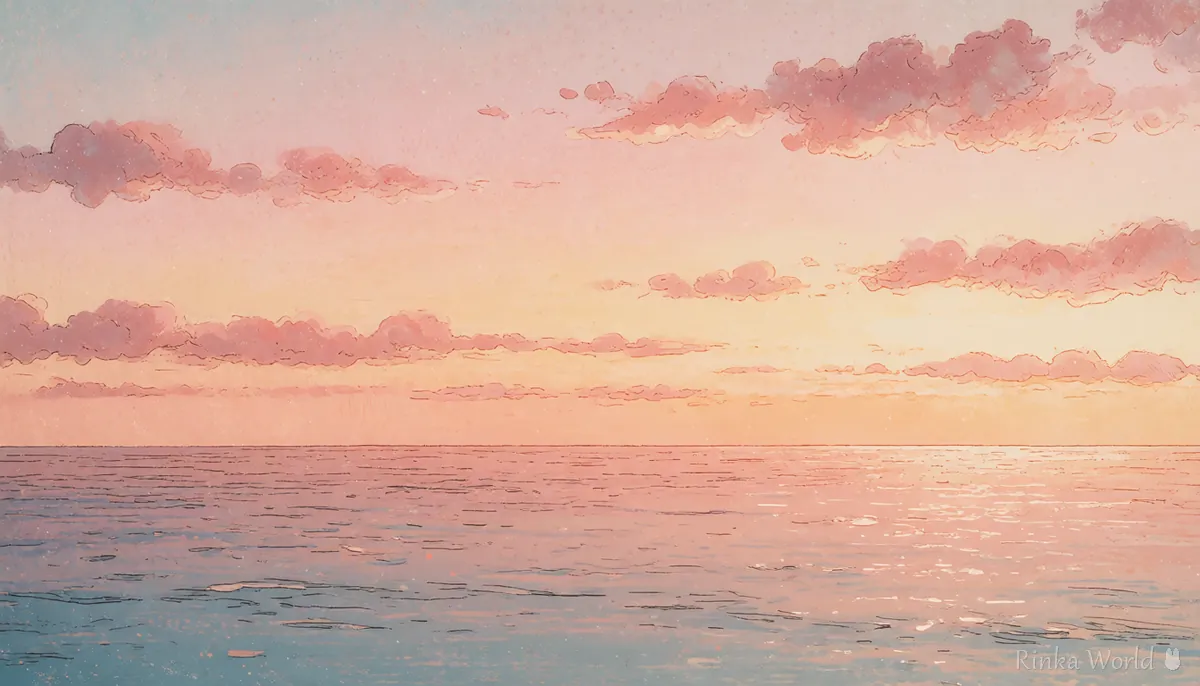
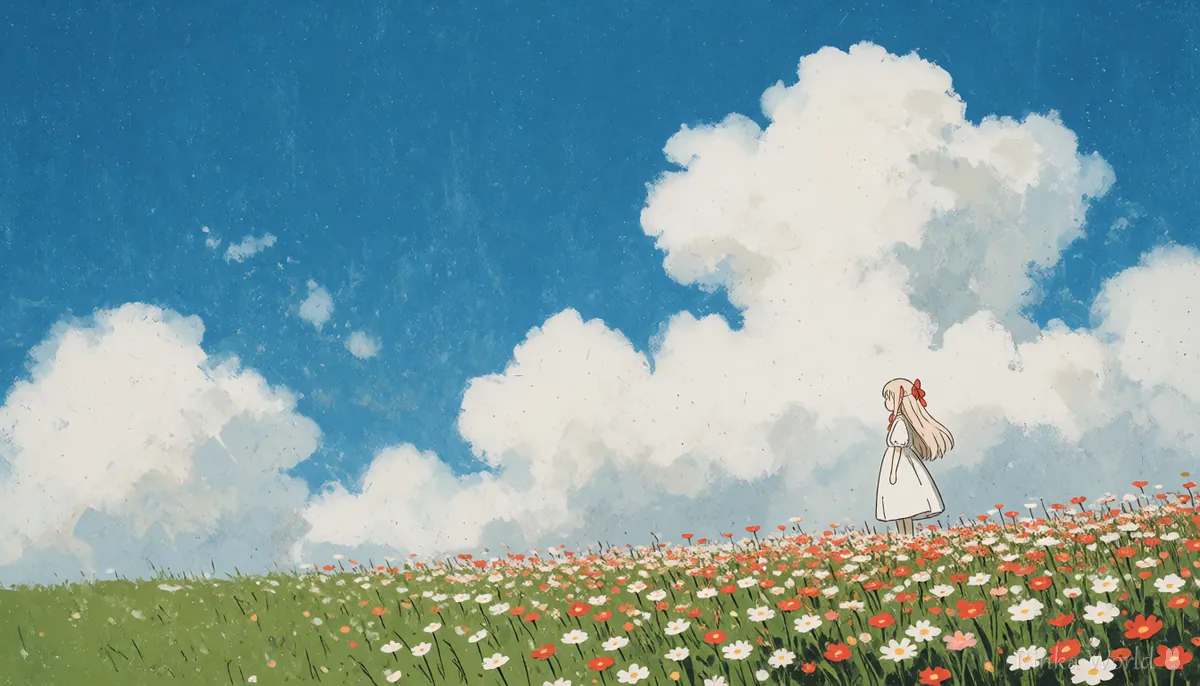
scenery, no humans, wide panoramic view, soft gradient sky at sunset, gentle clouds, calm sea, horizon in the middle, warm pastel colors, peaceful mooda wide panoramic anime landscape of a flower field under a blue sky, a small girl with long hair standing on the right side of the frame, lots of open sky, the lower left corner is plain grass with nothing importantWhere does a header get cut?
The top and bottom edges and the lower left, where the icon overlaps, are the areas most likely to be hidden. The exact view varies a little by device and display.
Rinka's tips
- A large person easily gets their face cut when the ratio changes; small and to the right is safer
- Matching the colors of your icon and header makes the whole profile look unified
- Changing only the colors of the same composition each season makes the update easy to notice
What are the common header mistakes and fixes?
What should you watch when setting a header image?
Check size and display rules in X's official help, and do not use images that imitate other people's works or real people.
- Recommended sizes and file size limits can change, so read the latest official guidance
- Check the generation service's terms for rules on social media use and credits
- If you promote your work in the header, do not make the text too small
Prompts for scenery-first wallpapers without people: Wallpaper and Scenery Prompts: Landscapes With No Humans →
To make a social media icon that matches the header: Icon Prompts: Making Square Close-Up Avatars for Social Media →
To extend an image sideways (outpainting): How to Outpaint (Extend the Edges of an Image or Make It Wider) →
FAQ
Frequently Asked Questions
What size is an X header image?
Recommended sizes can change, so check X's official help. It is wider than a normal 16:9, so generating around 16:9 with AI and trimming the top and bottom is the safer method.
Can I put a person in the header?
Yes, but small and to the right is recommended. The icon overlaps the lower left, and the top and bottom may be cut on some devices.
I cannot get a very wide image to come out well.
Image generators can struggle with extreme widths. Generate at 16:9 and trim, or extend the image sideways with outpainting.
My header image is too heavy to upload.
Convert it to JPEG or WebP, lower the quality slightly and shrink it to the recommended size if needed. Check the official guidance for the file size limit.
RINKA WORLD
Play in Rinka World
MORE