PROMPT GUIDE
How to Upscale Images with AI (Enlarging Anime Art Cleanly)
You want to print an AI illustration, use it as a wallpaper, or make it look sharp on social media. That is when you use upscaling. There is plain enlarging and there is AI enlarging that adds detail, and which one to choose depends on the goal. This guide focuses on anime art and covers how upscaling works, the steps, and how to fix the mistakes that come from overdoing it.
Last updated: approx. 3 min read
The short answer
To upscale an image with AI, enlarge it 2x at a time with an upscaler, and choose an anime upscaling model for anime art. Jumping straight to 4x or more, or adding too much redrawing, tends to cause blurry lines and changed faces.
How do you upscale an image with AI?
Enlarge it 2x at a time with an upscaler. Choose an anime model for anime art and a photo model for photos.
Ordinary resizing just stretches pixels, so the bigger it gets, the blurrier it looks. AI upscaling uses what it has learned to fill in outlines and details while enlarging, so lines stay sharp. Common approaches are an "upscaler" that only enlarges, and a method that enlarges and then lightly redraws the picture to add detail (such as Hires.fix in Stable Diffusion).
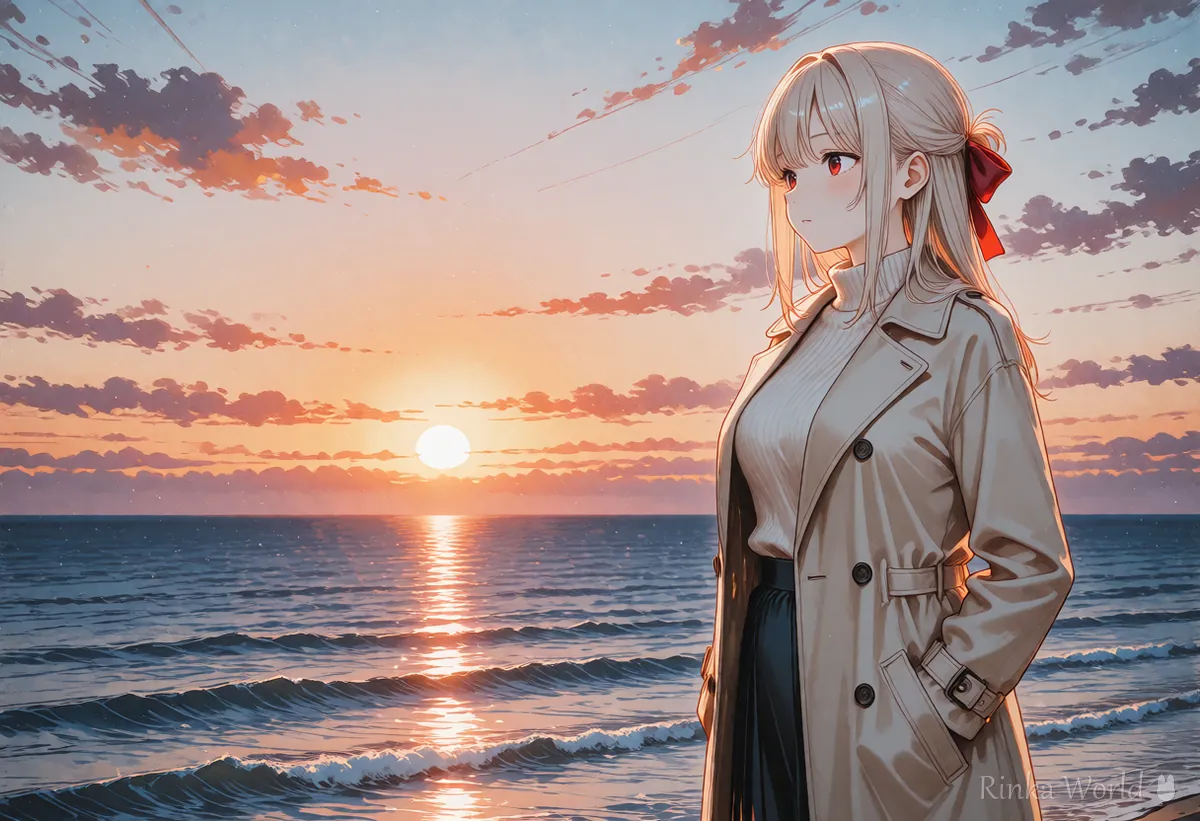
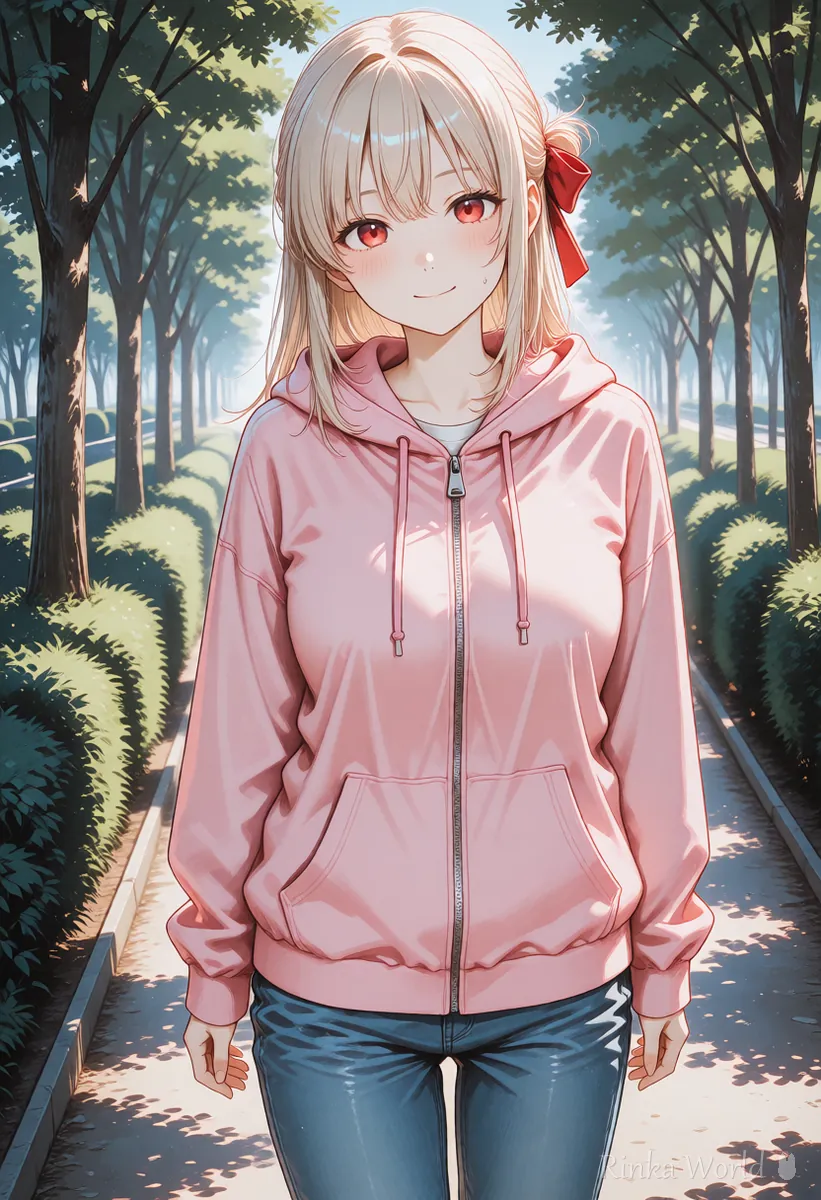
How do you enlarge anime art cleanly?
Pick an anime upscaling model and enlarge 2x at a time. Anime art with clear lines and flat colors can gain extra patterns or grainy skin with photo models.
For anime art there are long-known free tools such as waifu2x, as well as upscaling models trained for anime. Which one suits you depends on the picture, so upscale the same image with two or three options and compare.
Steps to upscale anime art
- Save the original as PNG (JPEG block noise stands out when enlarged).
- Decide the size you need (around 2000px on the long edge for social media; for print, work back from the target size).
- Enlarge 2x with an anime upscaling model.
- Check the face, hair and fingers at 100% for blur or patterns.
- If it is not big enough, enlarge 2x again (do not jump to 4x at once).
- If you redraw to add detail, start with a weak redraw strength (around 0.3).
- When finished, convert to a lighter format for its use.
How big should the image be for each use?
Do not make it larger than the use needs. Oversized files are heavy, and social networks shrink them anyway.
(Guideline for enlarge-and-redraw in Stable Diffusion) scale 2x, redraw (denoising) strength 0.3–0.4, anime upscaling model(When asking ChatGPT or similar) Please enlarge this image and make the lines sharper without changing the content, the face or the colors. Do not add anything new.What if upscaling goes wrong?
Almost every failure is one of three: the scale is too large, the redraw is too strong, or the model does not suit the picture.
Rinka's tips
- Fix any broken parts (hands, eyes) before upscaling; otherwise they get sharpened too
- When comparing, look at the same area (eyes, hair tips) at 100% to see the difference
- Keep the big finished image as your original and make a separate light version for posting
Hires.fix settings in Stable Diffusion: Hires.fix Settings (Upscale Ratio, Denoising Strength, Upscaler) →
SDXL resolutions to choose at generation time: SDXL Resolutions (Recommended Sizes) and How to Pick a Ratio →
Fixing broken hands before upscaling: How to Fix Bad Hands in AI Art: The Complete Guide →
Scenery prompts for wallpapers: Wallpaper and Scenery Prompts: Landscapes With No Humans →
FAQ
Frequently Asked Questions
What is the difference between AI upscaling and normal resizing?
Normal resizing stretches pixels, so it gets blurry. AI upscaling fills in outlines and details with what it has learned, so the image stays sharp as it gets bigger.
Which model is best for upscaling anime art?
An upscaling model made for anime is recommended. Free tools like waifu2x are also widely known. What works best depends on the picture, so compare and choose.
How much can I enlarge at once?
2x per step is safe. For bigger sizes, repeat 2x. Going to 4x or more at once tends to blur lines.
The face changed after upscaling.
With enlarge-and-redraw, the redraw is usually too strong. Lower it to around 0.3, or only enlarge without redrawing.
The upscaled image is too heavy.
Shrink it to the size its use needs and convert to a lighter format such as WebP. For social media, around 2000px on the long edge is usually enough.
RINKA WORLD
Play in Rinka World
MORE