PROMPT GUIDE
How to Make an AI Illustration Background Transparent (Steps, White Edges, File Formats)
Standing art, stickers, icons, game assets: there are many times you want an AI illustration without a background. A little care when you generate the picture makes a big difference to the result. This guide walks through the background removal workflow, how to make images that cut out cleanly, how to fix white edges and jaggies, and how to choose a file format.
Last updated: approx. 3 min read
The short answer
To make an AI illustration transparent, generate it on a plain single-color background from the start, cut it out with a background removal tool or app, and save it as PNG or WebP. JPEG turns transparent areas white or black. White halos around hair shrink when the background color is clearly different from the character.
How do you make an AI illustration background transparent?
Three stages: make a picture with a plain background, remove the background, and save in a format that keeps transparency. How you make the first picture decides how clean the result is.
Background removal tools cut out the subject by telling it apart from the background. If the background is busy, the boundary is hard to see, so hair tips or the area around the fingers get chipped, or background color is left behind. If the background is plain and clearly a different color from the character, almost any tool cuts it out cleanly.
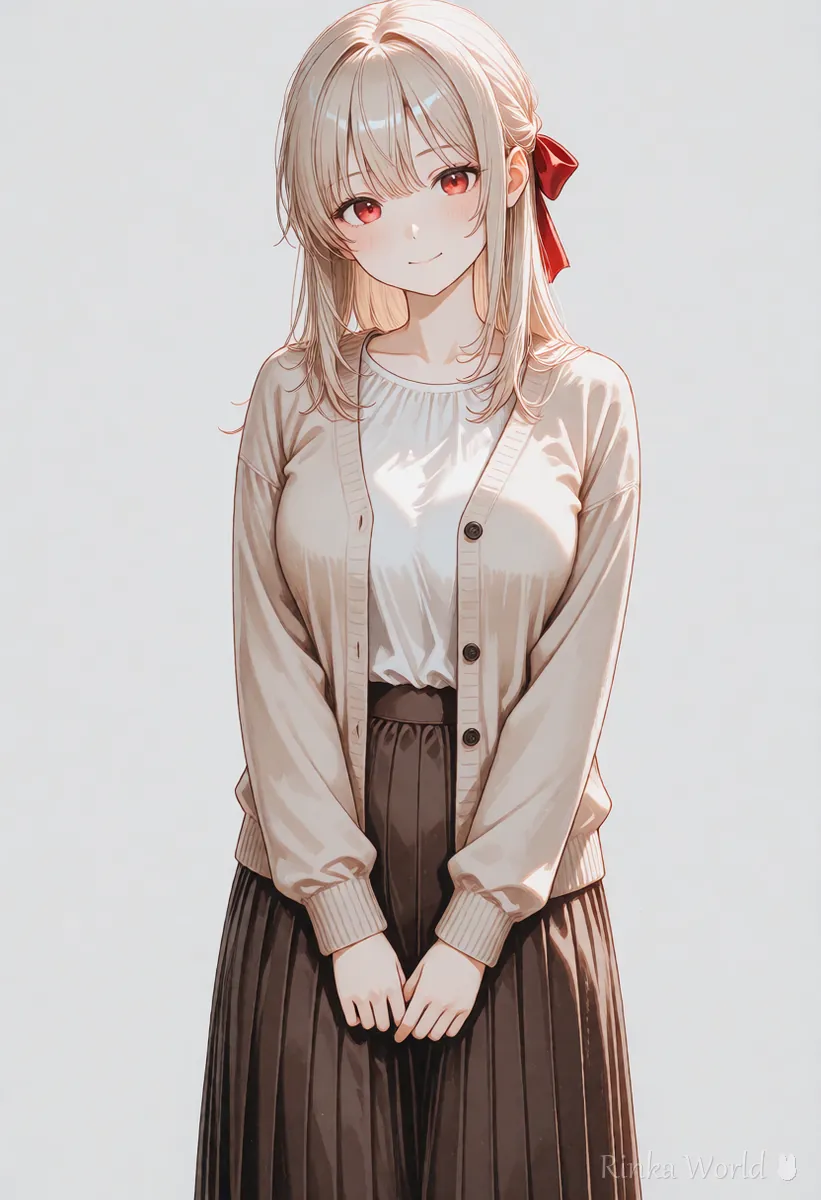
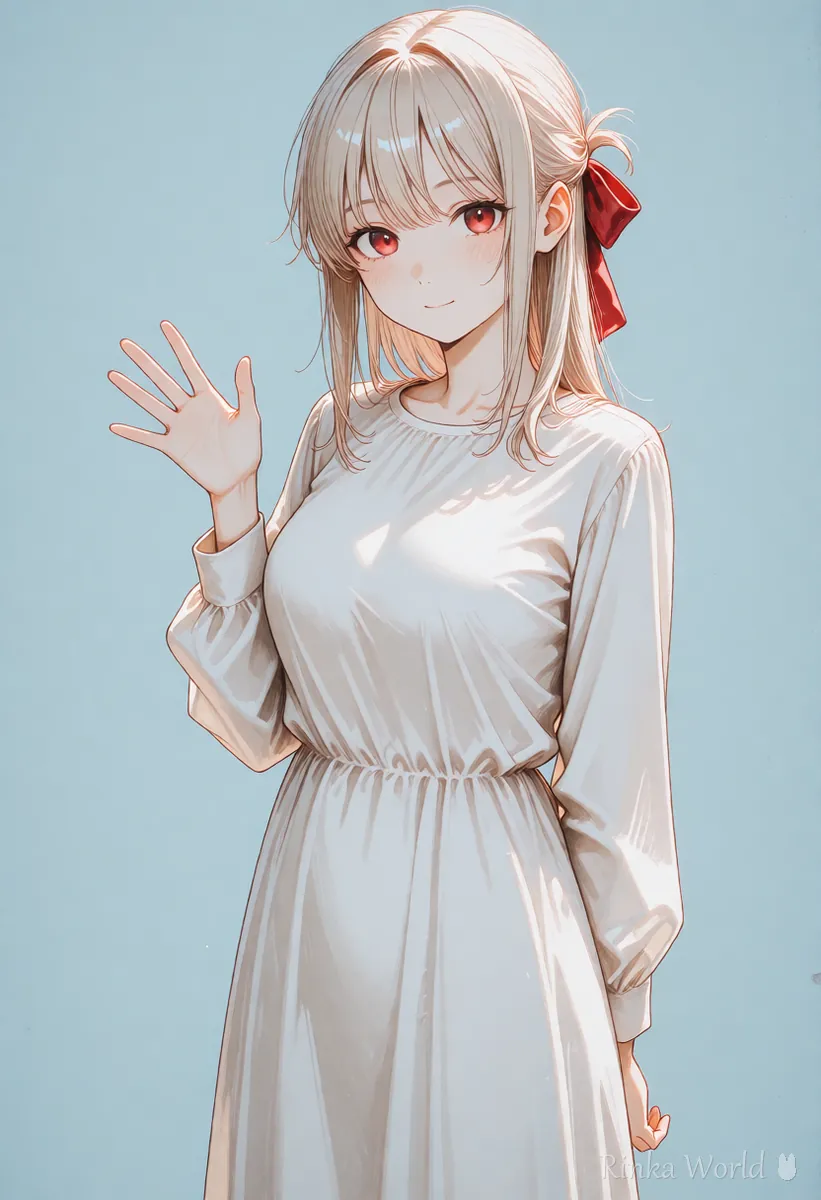
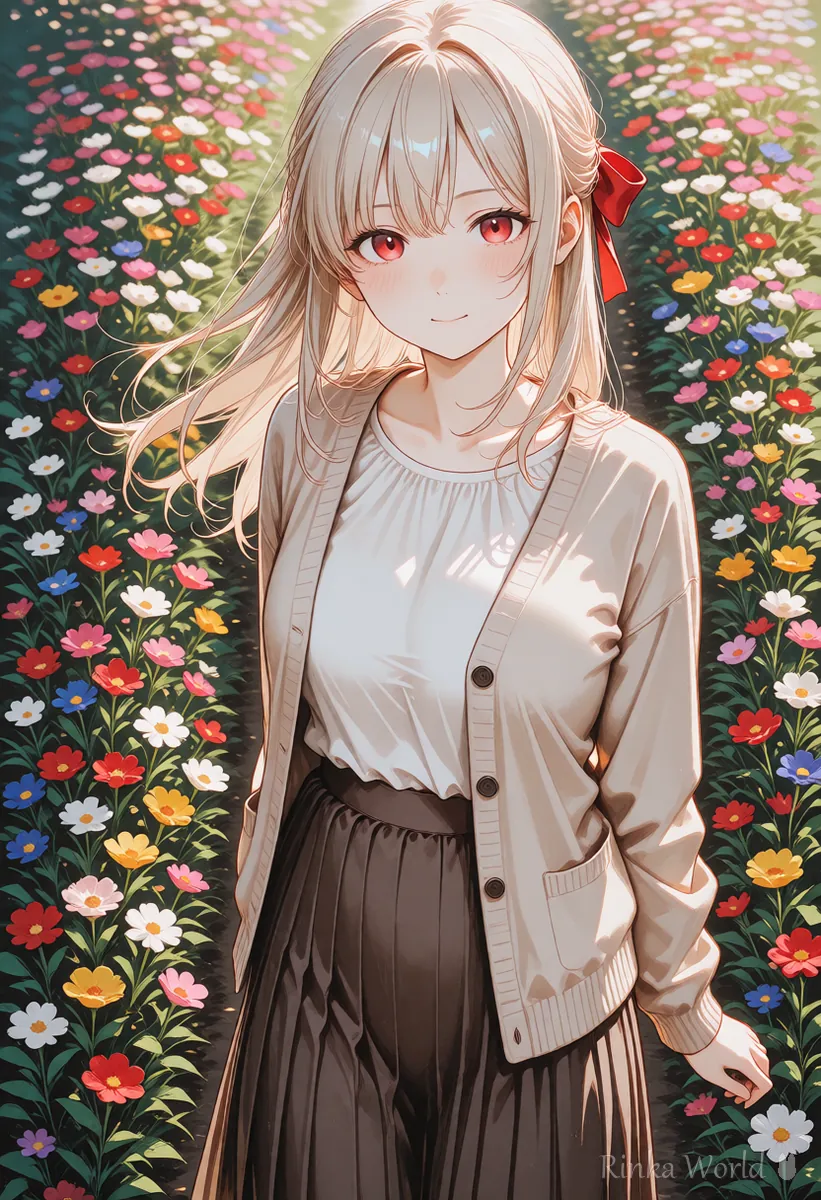
Background removal workflow (the basics)
- When generating, use a plain single-color background (plain background, simple background, etc.).
- Pick a background color different from the hair and clothes (for white clothes, use grey or light blue).
- For a full-body cutout, keep head to toe in frame with some space around.
- Remove the background with a background removal tool or app.
- Zoom in and check that no background remains around the hair, between the fingers or in gaps in the clothes.
- Save as PNG or WebP (JPEG loses transparency).
How do you make an image that is easy to cut out?
Use a plain background and a clear outline around the character. Soft glows, smoke and see-through materials make cutting out harder.
1girl, solo, full body, standing, long hair, hair ribbon, cardigan, long skirt, simple background, grey background, looking at viewer, smileA full-body anime illustration of a girl standing and smiling, on a plain light grey background with nothing else, clear outline, even soft lightingHow do you remove white edges around the hair?
White edges are the white background color left on hair tips and outlines. Generating on a non-white background works best; for an existing image, shrinking the outline slightly inward makes them less visible.
- New images: use grey or a color that is not in the picture instead of white
- Existing images: in an image editor, contract the selection by 1–2 pixels before deleting
- Placing on a dark background: the edge color stands out, so regenerate with a background close to the final background color
- Very fine hair: a few missing strands are not noticeable, so prioritize a smooth outline
Should you save as PNG or WebP?
Use PNG or WebP to keep transparency. Keep the original for editing as PNG, and use WebP for the light version you put on a site or social media.
What if background removal does not work well?
Here are the common mistakes and fixes.
Rinka's tips
- Check the cutout on both a light and a dark background to spot leftover edges
- To make a transparent image lighter, choose WebP, which supports transparency
- Some social networks show transparent areas as black or white, so check in a preview before posting
Background prompts, including white and single-color background tags: Background and Location Prompt Tag List →
Prompts for standing art and turnaround sheets: Full-Body Standing Art, Turnaround and Character Sheet Prompts (Plus Expression Variants) →
Face close-up prompts for social media icons: Icon Prompts: Making Square Close-Up Avatars for Social Media →
AI upscaling to enlarge an image before cutting it out: How to Upscale Images with AI (Enlarging Anime Art Cleanly) →
FAQ
Frequently Asked Questions
How do I make the background of an AI image transparent?
Generate the picture on a plain single-color background, remove the background with a tool or app, and save as PNG or WebP.
I removed the background but it shows white.
JPEG does not keep transparency. Save it again as PNG or WebP.
How do I get rid of the white edge around the hair?
Regenerating on a non-white background works best. For an existing image, contract the selection by 1–2 pixels before deleting.
What background color is best for background removal?
A color not used in the hair or clothes. A single color clearly different from the picture, such as grey or pale blue, cuts out most easily.
RINKA WORLD
Play in Rinka World
MORE