PROMPT GUIDE
How to Use NovelAI Inpaint (Redraw Just One Part)
NovelAI inpaint lets you select just the part of a finished picture that bothers you with a mask and redraw only that area. It helps when you like the whole picture but a hand broke, or when you only want to change the expression. This guide explains painting the mask, what to write in the prompt, and how to choose strength, in order.
Last updated: approx. 3 min read
The short answer
NovelAI inpaint redraws a masked area using a prompt that describes only what you want in that area. Paint the mask a little wider than needed and start with low strength to keep seams from showing. Screen names and settings change between versions, so check the official guide.
What is NovelAI inpaint, and what can it do?
It selects part of a finished picture with a mask and redraws only that part.
If you redo the whole picture, even the composition and face you liked can change. With inpaint, only the area you want fixed is remade and everything else stays as it is. It suits fixing the shape of a hand, an expression, a held object, or a small object in the background. Screen names and setting items can change between versions, so check the official guide for the actual screen.
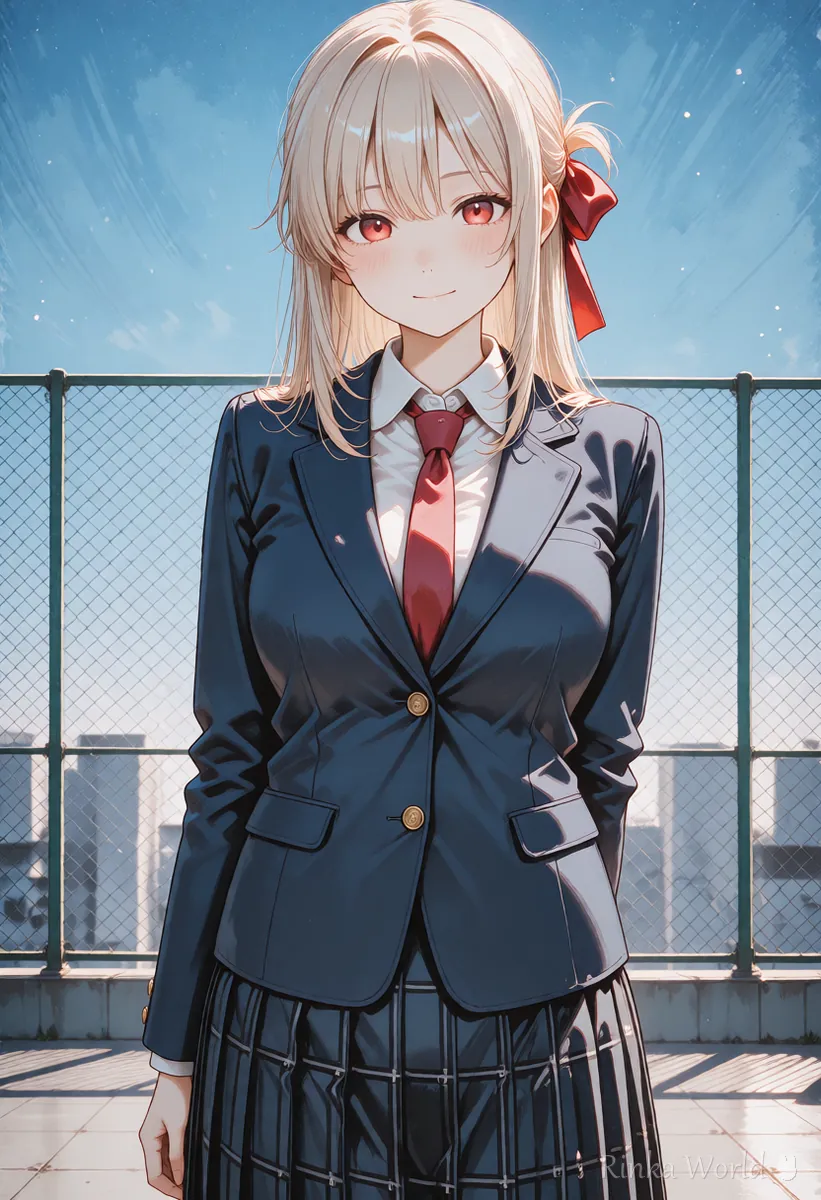
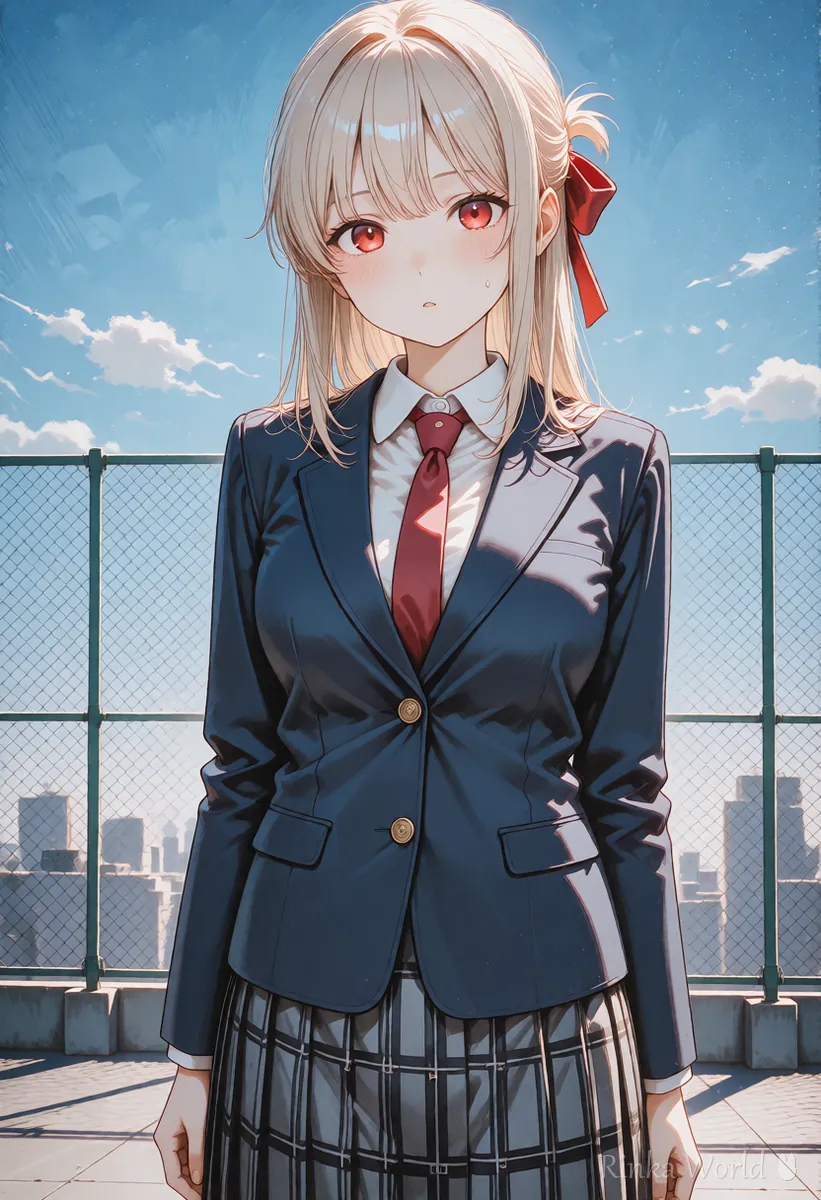
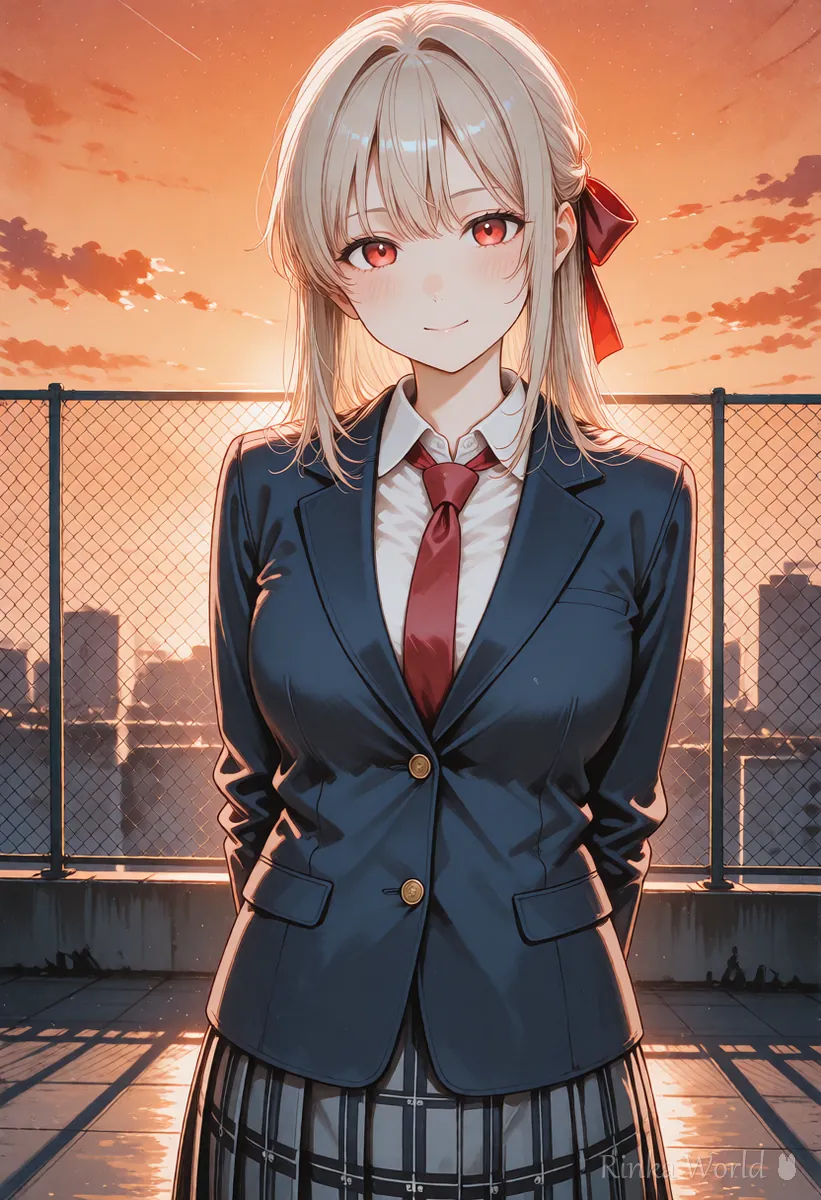
What are the steps for NovelAI inpaint?
Steps for fixing just one part
- Choose the picture you want to fix and open the inpaint screen
- Paint the area you want to fix with the brush (make the edge a little wide)
- Rewrite the prompt so it contains only what you want drawn in the painted area
- Set the strength low and make one image first
- If it is not fixed, raise the strength a little or widen the mask and try again
- When you like it, save it and check how the whole picture looks
smile, closed mouth, looking at viewer, soft eyeshand, five fingers, holding a white cup, relaxed handRinka's tips
- Keep the prompt to the content of the part you want to fix. If you describe the whole picture, all of it may be squeezed into the painted area
- Fix only one place at a time. Fixing a hand and an expression one after the other fails less often than doing both at once
- Keep a copy of the original picture before you start so you can redo it
How do you decide the mask range and strength?
Make the range a little wider than the area to fix, start with low strength, and raise it little by little if that is not enough.
What the strength numbers mean can differ a little between versions and screens, so do not copy numbers as they are. Try low, then medium, then high, and find the point you like.
What if the seam of the fixed area shows? (Common failures and fixes)
The cause is that the mask range is too narrow, or the prompt does not match the whole picture.
How is it different from img2img?
img2img remakes the whole picture from the original, while inpaint remakes only the range you selected.
- When you want to change the mood of the whole picture, remaking the whole picture (img2img and so on) fits
- When you want to fix only one part, inpaint fits
- With either, it is safer to keep the original picture before you try
For how img2img and inpaint work in Stable Diffusion, see How to Use img2img and Inpaint (Fixing Only Part of an Image) →
For the basic fix when hands break, see How to Fix Bad Hands in AI Art: The Complete Guide →
For fixes when faces break, see Why AI Art Faces Get Distorted and How to Fix Them (Full Body, Distant Shots, Inpaint) →
For the basic NovelAI prompt, see How to Write NovelAI Prompts (Emphasis, Quality Tags, UC) →
FAQ
Frequently Asked Questions
Can I fix hands with NovelAI inpaint?
Often, yes. Paint a little wide around the hand and fingers and redraw with tags such as hand and five fingers. If one try does not fix it, make several and choose.
How wide should the mask be?
A little wider than the area you want to fix. If you paint it exactly, the seam is more likely to show.
Do I rewrite the whole prompt?
No. Write only what you want drawn in the painted area. If you describe the whole picture, all of it may end up inside the painted area.
How high should the strength be?
Start low and raise it little by little if that is not enough. What the numbers mean may change between versions, so check the official guide.
Does inpainting use up anything?
Pricing and consumption change with your plan and the time. Check the official pricing page before you use it.
RINKA WORLD
Play in Rinka World
MORE