PROMPT GUIDE
How to Choose a Stable Diffusion Model (Checkpoint)
In Stable Diffusion, the look of your images is decided more by which model (checkpoint) you use than by the prompt. There are countless models available, and it is easy to get lost. Rather than naming specific models, this guide explains how to think about choosing one and what to check.
Last updated: approx. 3 min read
The short answer
Choose a Stable Diffusion model by three things: what kind of images it is good at, which generation it belongs to, and the terms under which you may use it. Check the recommended size, quality tags and license on its download page, then test a few images with the same prompt before making it your main model. Prefer the safetensors file format.
What is a Stable Diffusion model (checkpoint)?
It is the core file for making images, and it decides most of the art style and what the model is good at.
A checkpoint is a large file that bundles what was learned from a huge number of images. With the same prompt, a model good at anime gives you anime art and a model good at photos gives you photo-like images. A LoRA only adds a few features on top of that model, so choosing the base model comes first.
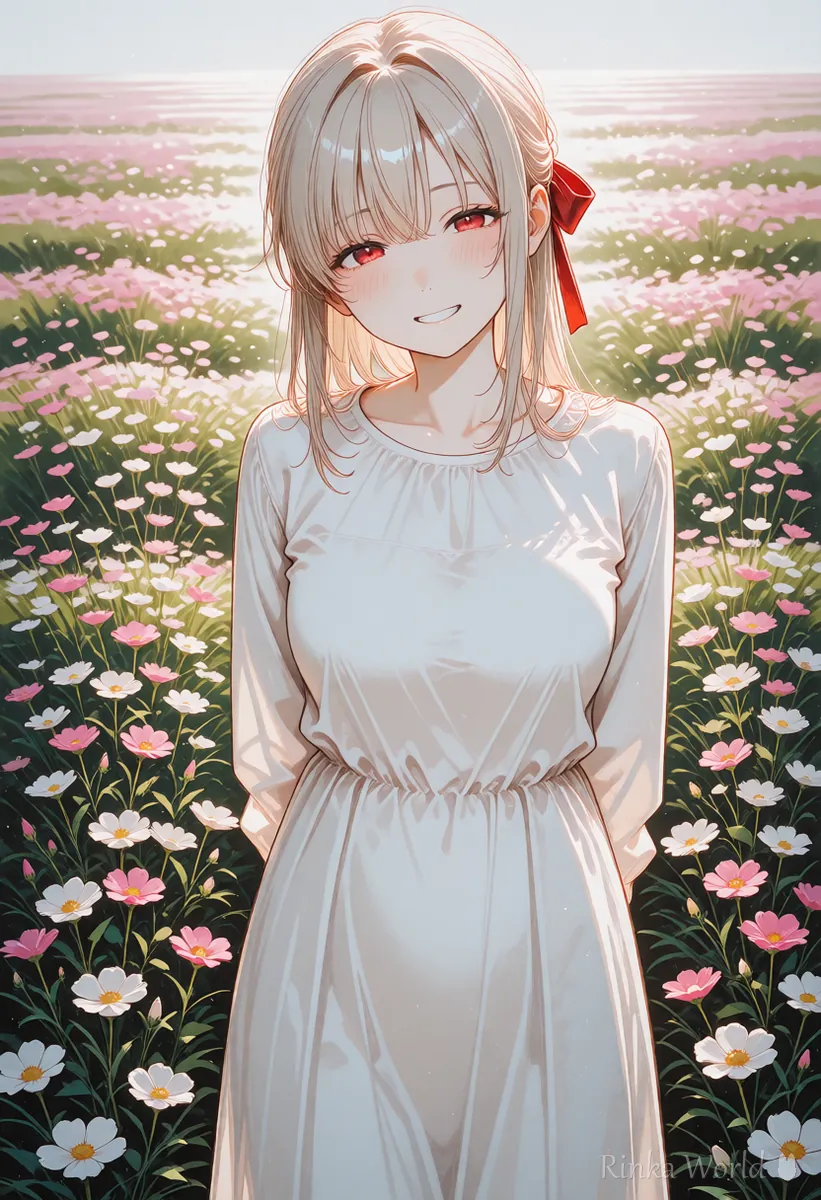
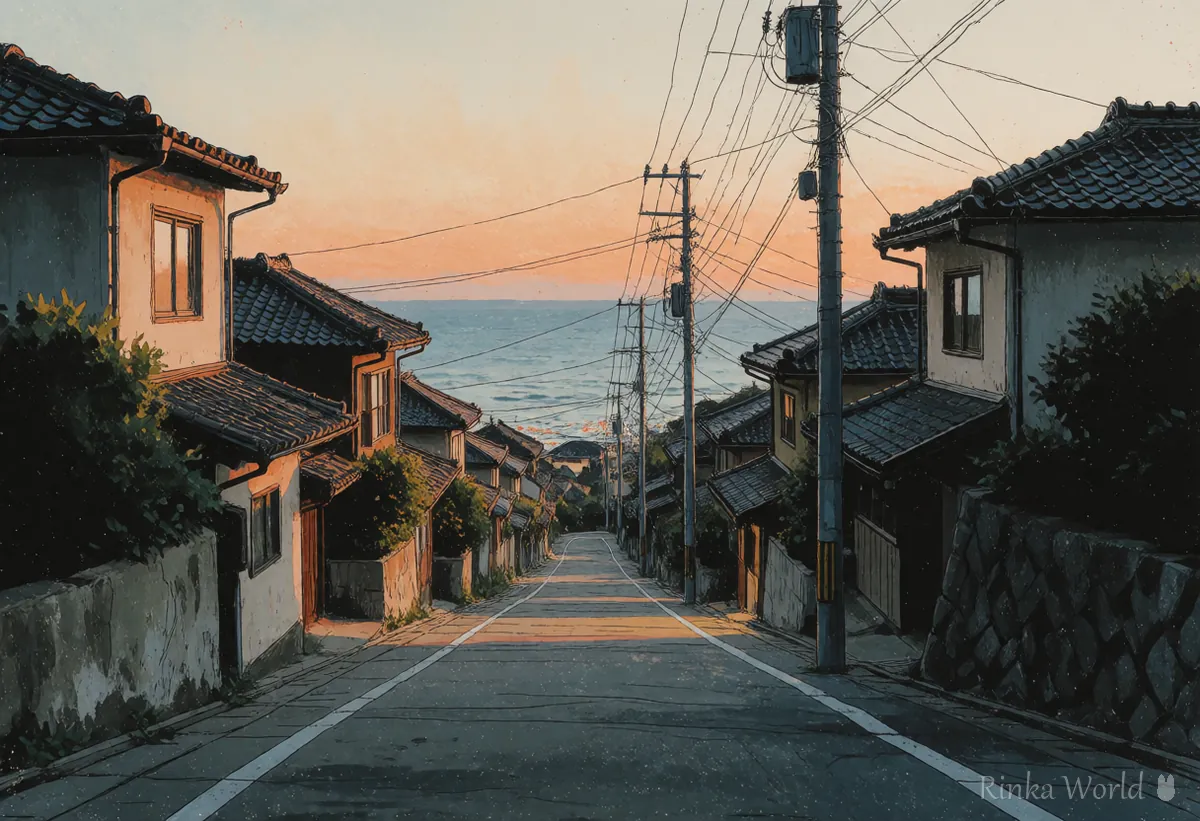
What should you check when choosing a model?
Start with four things on the download page: generation, recommended settings, license and file format.
Rinka's tips
- .ckpt files can contain program code, so avoid ones of unknown origin and choose the safetensors format
- Some models are also released in lighter versions such as fp16. The look is nearly the same and the file is smaller
- Licenses can change with updates. Check again before use and before any commercial use
How do you test a model?
Steps to try a new model
- With your current model, pick one reference prompt and seed and save them
- Put the new model in the models folder (Stable-diffusion or checkpoints) and select it in the interface
- Match the recommended size, quality tags and negative prompt from the download page
- Make a few images with the same prompt and seed and compare them with your previous model
- Check that the images you usually make, including expressions, hands and backgrounds, don't break before adopting it
Reference prompt example: 1girl, solo, long hair, smile, school uniform, classroom, window, sunlight, upper body, masterpiece, best qualityComparison note example: model name / size 832x1216 / seed 12345 / quality tags: as recommended / notes: hands stable, background brightFor how to fix the seed and compare, see What Is a Seed? Fixed, Random, and Reproducing the Same Image →
To compare several models in one grid image, see How to Use the XYZ Plot (Compare Settings Side by Side) →
How should you choose an anime model?
Pick a generation you can prompt with Danbooru tags, and start with models that have many examples in a style you like.
Many anime models in use today are based on SDXL, such as the Illustrious and Pony families. Recommended quality tags and prompt styles differ by model, so if sample prompts are published, start from those and adapt them to your own images to get used to the model quickly.
For the prompt order in Illustrious-based models, see Illustrious and NoobAI Prompt Order →
What are common mistakes and how do you fix them?
For SDXL vs SD1.5, see SDXL vs SD1.5 (Image Quality, Image Size and LoRA Compatibility) →
For what a VAE does and how to choose one, see What Is a VAE? Why Colors Look Dull, and How to Choose and Set a VAE →
FAQ
Frequently Asked Questions
What is the difference between a checkpoint and a LoRA?
A checkpoint is the large base file for images, and a LoRA is a small add-on that adds a few features to it. Use LoRAs that match the generation of your model.
Should I choose safetensors or ckpt?
We recommend safetensors. A ckpt file can contain program code, so avoid ones of unknown origin.
Where can I check whether a model can be used commercially?
Check the license field and description on the download page. For merged models, the terms of the source models also matter, so check those too.
I installed a model but it doesn't show up.
Check that it is in the right folder and that you refreshed the list in the interface. Folder names differ by interface.
RINKA WORLD
Play in Rinka World
MORE