PROMPT GUIDE
How to Use ADetailer (What the Settings Mean and How to Set Them)
ADetailer is an extension used in AUTOMATIC1111, Forge and similar interfaces. When a face comes out small and broken in a full-body image, or a hand looks wrong, it automatically redraws just that part. Rather than the causes of broken faces, this guide focuses on what ADetailer's settings mean and how to set them.
Last updated: approx. 3 min read
The short answer
ADetailer is an extension that automatically finds faces or hands in a finished image and redraws only those parts. Start with a face detection model and a medium denoising strength. If the face turns into someone else, lower the denoising; if problems remain, raise it, adjusting one thing at a time.
What is ADetailer and what does it do?
It is an extension that automatically finds faces and hands in an image, redraws just those parts at a larger size, and puts them back.
In full-body images the face is small, so there is little room for detail and it breaks easily. After generation, ADetailer automatically 1) detects where the face or hand is, 2) crops and enlarges that area and redraws it (inpaint), and 3) puts it back into the original image. Think of it as doing the same thing as manual inpainting, every time, all at once.
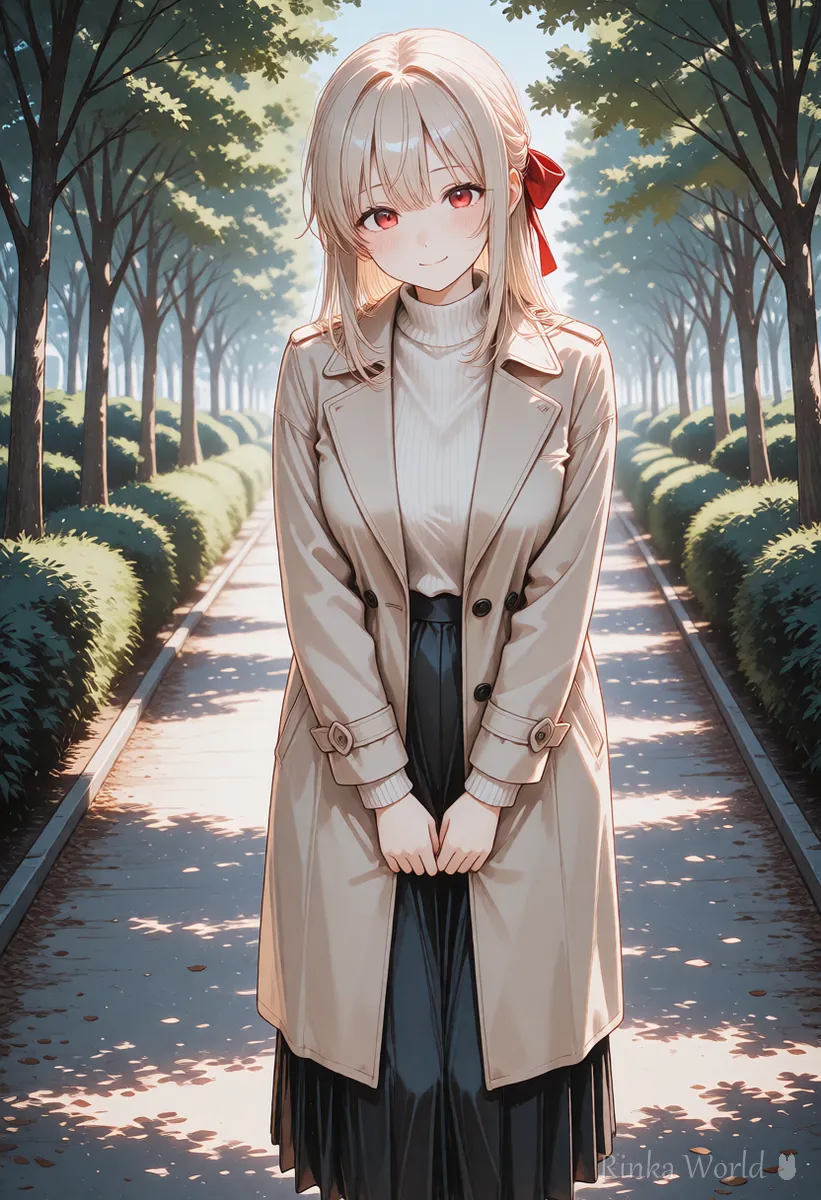
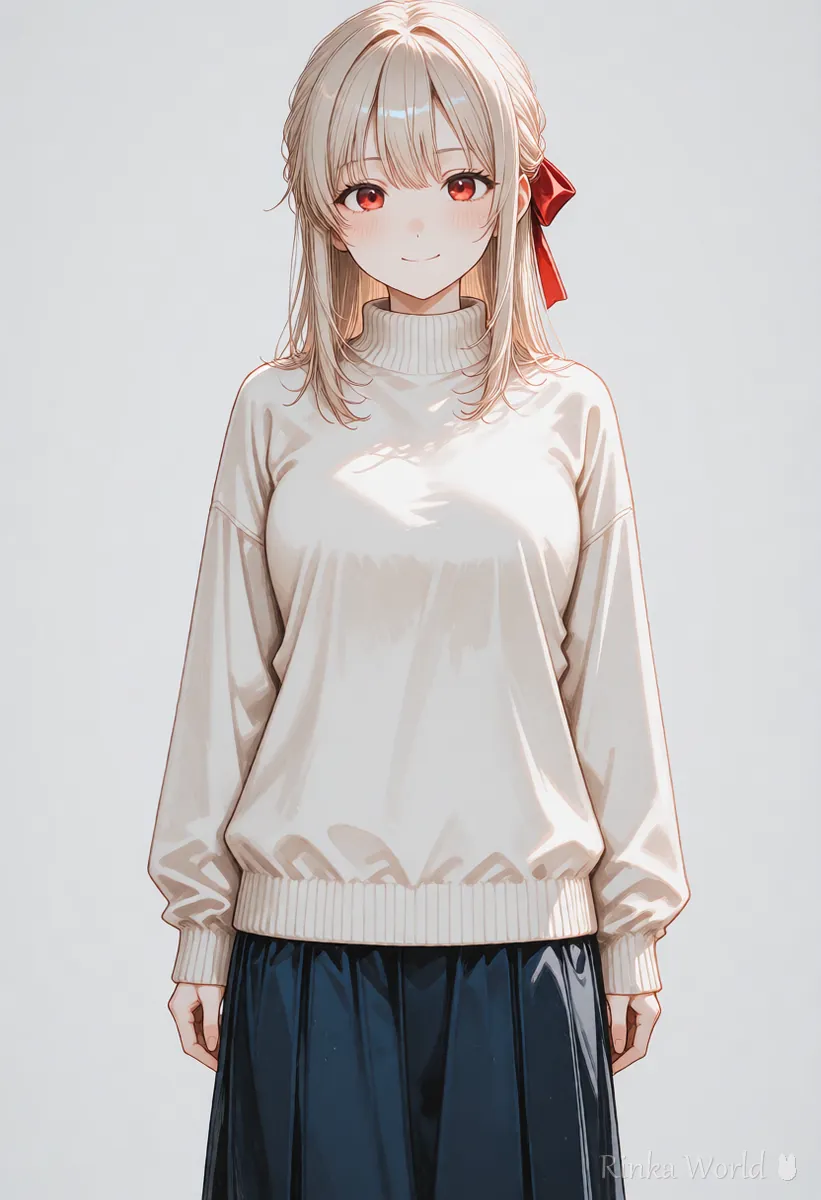
Rinka's tips
- Setting names and defaults can change between versions. Check the extension's page for the current names
- The stronger the fix, the further it drifts from the original. Starting weak to medium is less likely to go wrong
How do you use ADetailer? (First steps)
Steps to fix faces with ADetailer
- Install ADetailer from the extensions list and reload the interface
- Open the ADetailer section that appears on the generation screen and tick the enable box
- Choose a face model as the first detection model
- Leave the denoising strength at medium (the default) and make an image
- Compare the faces: lower the denoising if the face became someone else, raise it if problems remain
- To fix hands too, add a hand detection model in the second tab
To fix faces and hands at the same time, split them into tabs: face in the first, hands in the second. Trying to fix everything in one tab often leaves the settings wrong for one of them.
How do you write ADetailer's separate prompt?
Left blank, the main prompt is used. Write a short one only when you want to change the expression or keep the eye color.
Words in the separate prompt are applied only to the detected part, such as the face. Clothes and background aren't in that crop, so write only face-related words. Keep hair and eye colors the same as in the main prompt, or that part alone may change color.
Face prompt example: 1girl, smile, red eyes, light blonde hair, detailed eyes, looking at viewerFace negative example: worst quality, low quality, bad anatomy, asymmetrical eyes, extra eyesWhat if ADetailer turns the face into someone else?
The usual causes are denoising that is too strong or separate-prompt words that don't match the original image.
For why faces break and fixes other than ADetailer, see Why AI Art Faces Get Distorted and How to Fix Them (Full Body, Distant Shots, Inpaint) →
For hand fixes using composition and negative prompts, see How to Fix Bad Hands in AI Art: The Complete Guide →
To redraw a part manually with inpaint, see How to Use img2img and Inpaint (Fixing Only Part of an Image) →
Should ADetailer always be on?
Not necessarily. It is handy for full-body images where faces are small, or when you make many images and pick the best.
In face close-ups and upper-body images the face is already large, so ADetailer may change little and only add generation time. In full-body and wide shots, on the other hand, the effect is large. Turning it on or off to suit the composition is recommended.
FAQ
Frequently Asked Questions
Which interfaces support ADetailer?
It is used as an extension for AUTOMATIC1111, Forge and similar interfaces. ComfyUI has nodes that do similar work. Support changes between versions, so check the download page.
What denoising strength do you recommend?
There is no single right value. Start with the default, lower it if the face becomes someone else, and raise it a little if problems remain, one step at a time.
Can ADetailer fix hands too?
Sometimes, with a hand detection model. Hands are complex, though, so combining it with hiding hands in the composition or using simple hand poses is more reliable.
Do I have to write a separate prompt?
No, it works blank. In that case the main prompt is used. Write one only when you want to change the expression or keep colors.
RINKA WORLD
Play in Rinka World
MORE