PROMPT GUIDE
How to Use SeaArt and Tensor.Art (Try Image Generation in Your Browser)
SeaArt and Tensor.Art are services where you can try Stable Diffusion-style image generation in a browser alone, with nothing installed on your own computer. A feature of them is that you can choose models and LoRAs to use. This guide explains the flow up to your first picture and what to check when you choose.
Last updated: approx. 3 min read
The short answer
SeaArt and Tensor.Art are services where you pick a model in the browser, write a prompt and make an image. What is free, the terms for each model and whether commercial use is allowed can change, so check the official guide. When using them for all-ages work, check the age-related settings and the range of public sharing.
What kind of services are SeaArt and Tensor.Art?
They are services for Stable Diffusion-style image generation that work in the browser alone, and a feature of them is that you choose models and LoRAs to make pictures.
To run image generation on your own computer you have to set up an environment. With services like SeaArt and Tensor.Art you log in from the browser, choose models and LoRAs that other people have published, and make images just by writing a prompt. However, what is free, how crowded it is and the terms of each model change with the service and the time. Check the official guide before you use them.
What are the steps for making your first picture?
Steps for making an image in the browser
- Create an account on the official site and check the terms of service
- Open the image generation screen
- Choose a model that fits the picture you want, such as one for anime pictures
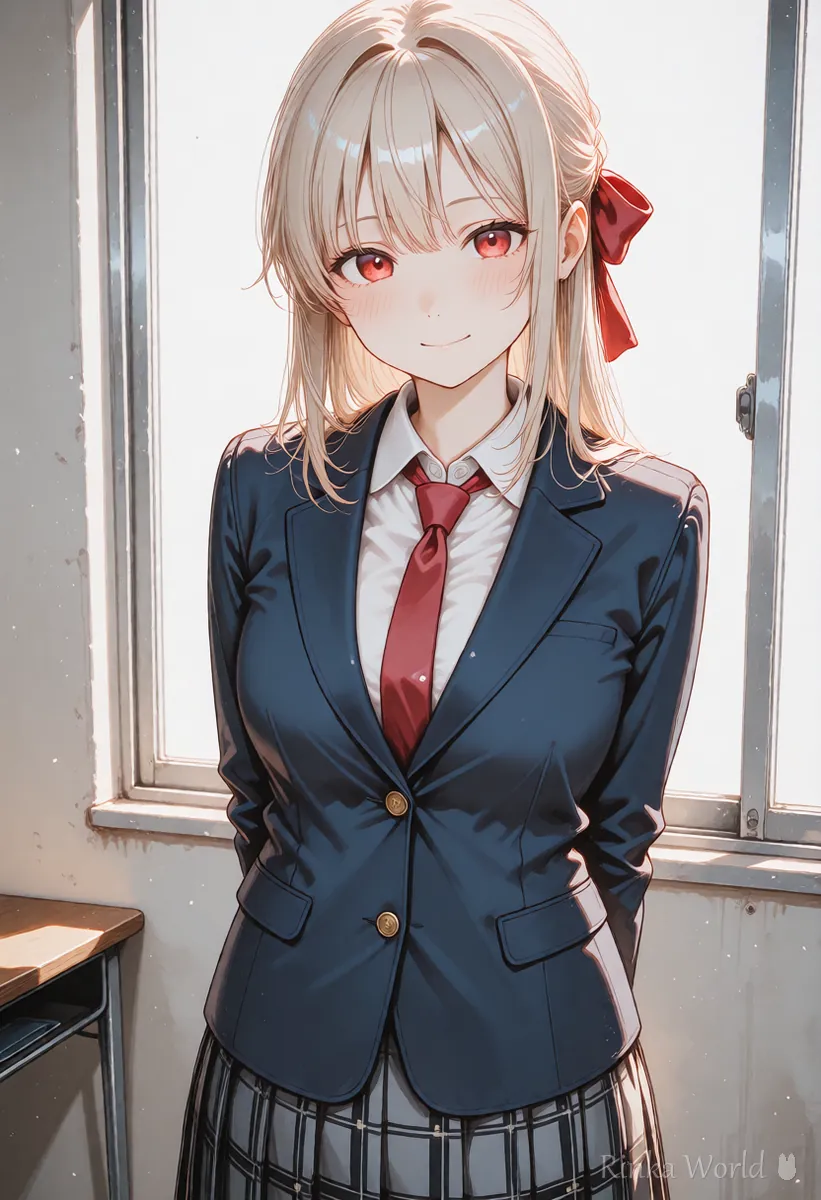
- Write a short prompt (1girl, solo, smile, school uniform and so on)
- Decide the size and the number of images and make one image first
- Fix the parts you do not like one at a time and make it again
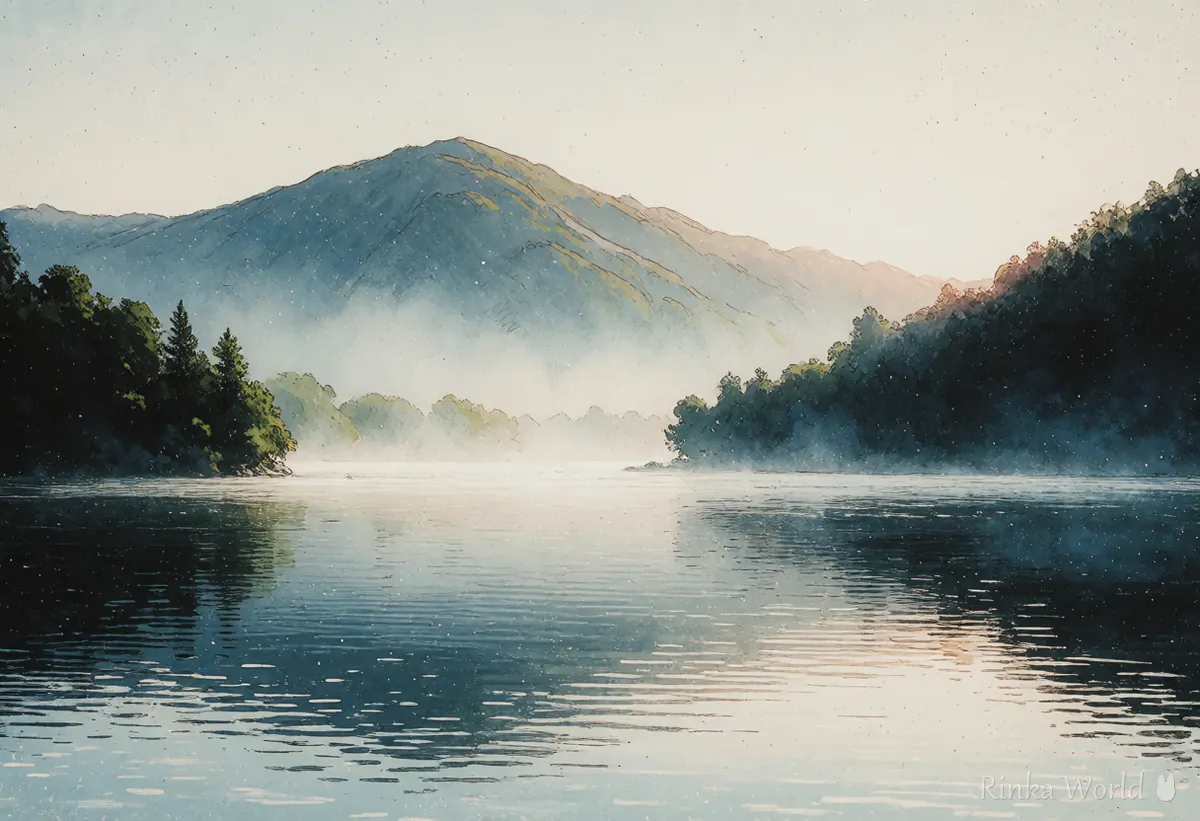
1girl, solo, long hair, red ribbon, school uniform, smile, looking at viewer, classroom, window, sunlight, upper bodyscenery, no humans, lake, mountains, morning mist, soft light, wide shotRinka's tips
- At first, settle on one model and make several pictures with it. You will see how the prompt works
- Try copying the "recommended prompt" or "trigger word" written in the model description first
- Try a small size first so you do not use up the free range
How do you choose models and LoRAs?
Do not choose by popularity alone. Look at the sample pictures, the terms of use, and the supported type (such as SDXL).
- See whether the sample pictures are close to the art style you want to make
- Check whether the model description states the terms for commercial use and redistribution
- Choose a LoRA of the same type as the model (SDXL or SD1.5, for example)
- When making all-ages pictures, choose ones whose art style and description are for all ages
- Try several and keep a record of the models that suit you
What if it does not work well? (Common failures and fixes)
The main causes are forgetting a model's trigger word, a mismatch between the type of LoRA and model, and using up the free range.
What should you check to use them safely?
First check three things: your account settings, the range in which your pictures are public, and the terms of use of the model.
- Do not use personal information or face photos as source images for generation
- When you publish, say clearly that the picture was made with AI
- Do not use pictures made to resemble other people's work or characters for publishing or selling
- Follow the terms written in the model description (commercial use, redistribution, credit)
For how to get started with AI illustration, see Getting Started with AI Illustration (Beginner Steps) →
For how to choose a model, see How to Choose a Stable Diffusion Model (Checkpoint) →
For how to use LoRAs, see How to Use LoRA (Syntax, Strength and Trigger Words) →
For items to check before commercial use, see What to check before using AI images commercially (reading the terms) →
For another service for anime pictures, see How to Use PixAI (Steps and Tips for Making Anime Pictures in the Browser) →
FAQ
Frequently Asked Questions
Can I use SeaArt and Tensor.Art for free?
What is free and the amount of credit change with the service and the time. Check the official guide before you use them.
Which one should I choose?
Both are types where you choose models and LoRAs. Look at how easy the screen is to read and what is free, and choose the one that is easier for you. Conditions change, so check the official guide.
Can I use the pictures I make commercially?
It is decided by the terms of the service and the conditions of each model you used. Check both before using them commercially.
I want to make only all-ages pictures.
Choose all-ages models and prompts, and check the age-related settings and the range of public sharing. When in doubt, read the official guidelines.
Can I do it without a computer?
In many cases you can try it on any device that can use a browser. Check the supported devices and screens in the official guide.
RINKA WORLD
Play in Rinka World
MORE