PROMPT GUIDE
How to Use Stable Diffusion Forge (Reading the UI and Making Your First Image)
Stable Diffusion WebUI Forge is an interface you operate with buttons and input fields. It looks almost the same as AUTOMATIC1111 (A1111), so tutorials written for A1111 are easy to follow too. This guide covers only the fields you need to look at to make your first image.
Last updated: approx. 3 min read
The short answer
Forge is a WebUI for running Stable Diffusion in your browser, laid out almost like AUTOMATIC1111. Pick a model at the top, then on the txt2img tab enter the prompt, negative prompt and size and press Generate to get your first image.
What is Stable Diffusion Forge?
It is a WebUI for running Stable Diffusion in your browser, with a screen close to AUTOMATIC1111.
Forge is an interface for running Stable Diffusion-type models on your own PC. It is built on AUTOMATIC1111 and works with tabs and input fields. The first hurdle is lower than ComfyUI's node wiring: write a prompt, press a button, and you get a picture. Parts of the screen and the supported model types change between versions, so check the official docs or release notes for details.
Where should you look on the Forge screen? (Reading txt2img)
Four places: the model selector at the top, the prompt boxes on the txt2img tab, the size, steps, CFG and seed fields, and the Generate button on the right.
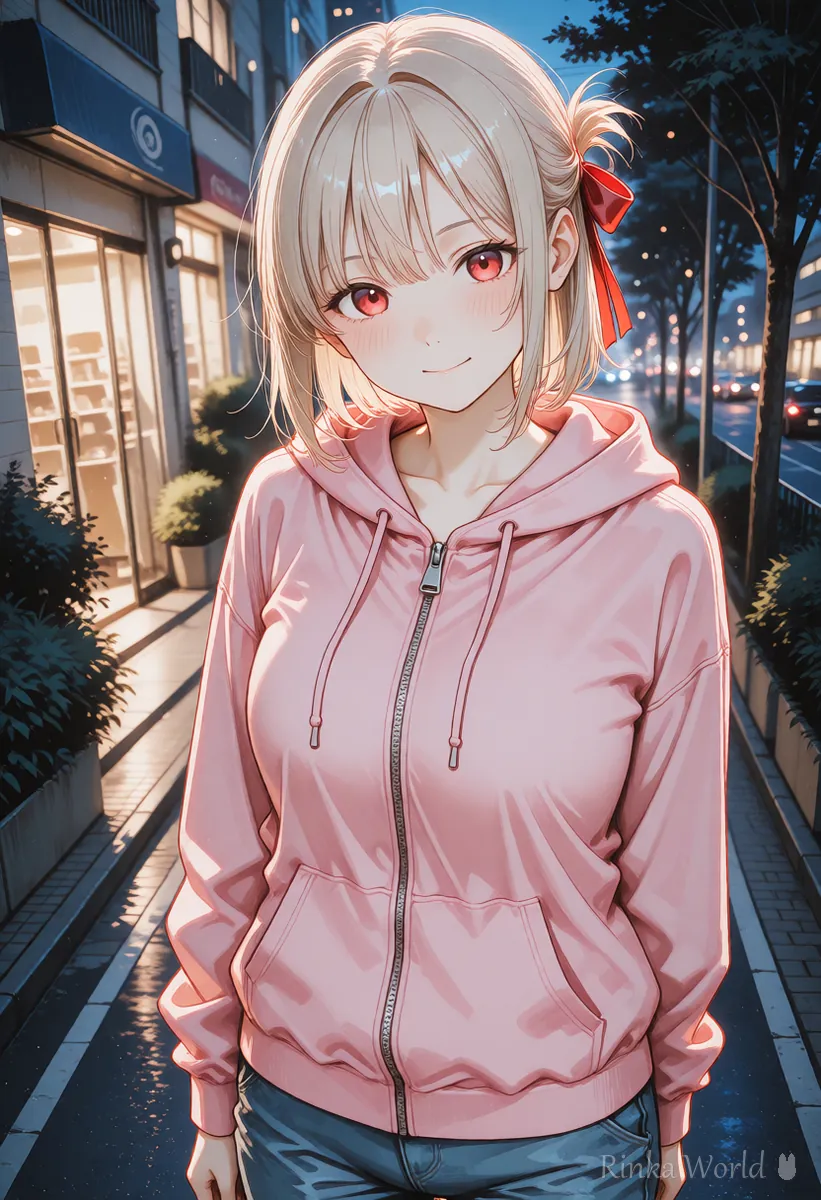

For what CFG, steps and samplers mean, see What Is CFG Scale? How to Choose Steps and Samplers →
How do you make your first image in Forge?
Choose a model, write the prompt and negative, set the size and press Generate.
Steps to your first Forge image
- Put the model into the Stable-diffusion folder inside the models folder
- Start Forge and open the address it shows in your browser
- Choose the model in the box at the top (press the refresh button next to it if it does not appear)
- On the txt2img tab, write what you want in the prompt box and what to avoid in the negative box
- Set width and height to a size that suits the model
- Press Generate and check the picture on the right
- Note the seed of any picture you like so you can make it again
1girl, solo, smile, short hair, hoodie, city street, evening, upper body, masterpiece, best qualityworst quality, low quality, bad anatomy, bad hands, extra fingers, blurry, jpeg artifacts, text, watermarkFor a ready-to-use negative prompt template, see Recommended Negative Prompts and a Copy-Paste Template →
How do you use LoRAs in Forge?
Put them in the Lora folder inside models and pick one from the LoRA tab; it gets written into the prompt.
When you pick a LoRA, text like <lora:filename:1> is added to the prompt. The last number is the strength; too high can break the picture, so 0.6 to 0.8 is a safe place to start. If the LoRA page lists a trigger word, add it to the prompt as well.
<lora:filename:0.7>, 1girl, solo, smile, upper bodyFor how to use LoRAs and strength guidelines, see How to Use LoRA (Syntax, Strength and Trigger Words) →
Where are img2img and Hires.fix?
img2img is its own tab, and Hires.fix is a checkbox inside txt2img.
- img2img tab: redraw from an existing picture. Inpaint, for fixing just one part, is here too
- Hires.fix: enlarge a small picture while adding detail
- Extras tab: finishing steps such as plain upscaling
- PNG Info tab: read the settings stored in an AI-made PNG
For how to use img2img and inpaint, see How to Use img2img and Inpaint (Fixing Only Part of an Image) →
What if Forge shows errors or strange images? (Common mistakes and fixes)
Checking the size, model, VAE and LoRA strength fixes most problems.
If you want to build the process yourself, see the ComfyUI beginner guide in How to Use ComfyUI for Beginners (Nodes and Your First Workflow) →
To fix broken hands, eyes and legs symptom by symptom, see AI Art Troubleshooting Guide (Look Up Fixes by Symptom) →
FAQ
Frequently Asked Questions
What is the difference between Forge and AUTOMATIC1111?
Forge is a WebUI based on AUTOMATIC1111, and the screen is almost the same. They differ in how they run and which model types they support, and this changes between versions, so check the official docs for details.
Are there recommended settings for Forge?
Steps, sampler and CFG are often recommended on the model's page. Start with those and change one thing at a time to compare.
How do I make the same image again?
Note the seed, keep the prompt, size and settings the same, and generate; you will get nearly the same picture. You can also load settings from an image on the PNG Info tab.
I added a LoRA but it has no effect.
Check where the file is and whether <lora:...> appears in the prompt. Some LoRAs need a trigger word. A LoRA also will not work if it was made for a different model type (SD1.5 vs SDXL).
RINKA WORLD
Play in Rinka World
MORE