PROMPT GUIDE
How to Write Adobe Firefly Prompts (Tips and Generative Fill)
Adobe Firefly is Adobe's generative image AI. Besides making pictures on its own screen, it can be used inside apps like Photoshop to add something only where you select. This guide covers how to write Firefly prompts, how to ask with Generative Fill, and how to fix results that miss.
Last updated: approx. 3 min read
The short answer
In Adobe Firefly, write the subject, place, light and mood in a short sentence and keep it consistent with the on-screen choices such as photo or art and style. In Generative Fill in Photoshop and similar apps, write only what you want to add and it blends with the surroundings. Check commercial-use terms on the official site.
How do you write an Adobe Firefly prompt?
Write the subject, place, light and mood in a short sentence and match it with the style choices on screen.
Firefly is a generative AI you ask with sentences. Rather than piling up tags like Stable Diffusion, a short sentence about what, where, and with what light and mood works better. The screen often offers choices such as photo or art, styles, colors and lighting, and the trick is to keep those choices consistent with the words in your prompt.
How do you make your first image in Firefly?
Choose the content type, ask in a short sentence, adjust style and ratio, and generate.
Steps to make an image in Firefly
- Open Firefly's image generation screen
- Choose photo or art (content type). For illustrations, lean toward art
- Write the subject, place, light and mood in a short sentence
- Choose an aspect ratio for the use
- If there are style, color or light options, pick one that goes the same way as your prompt
- Generate, then add or remove words based on the closest result
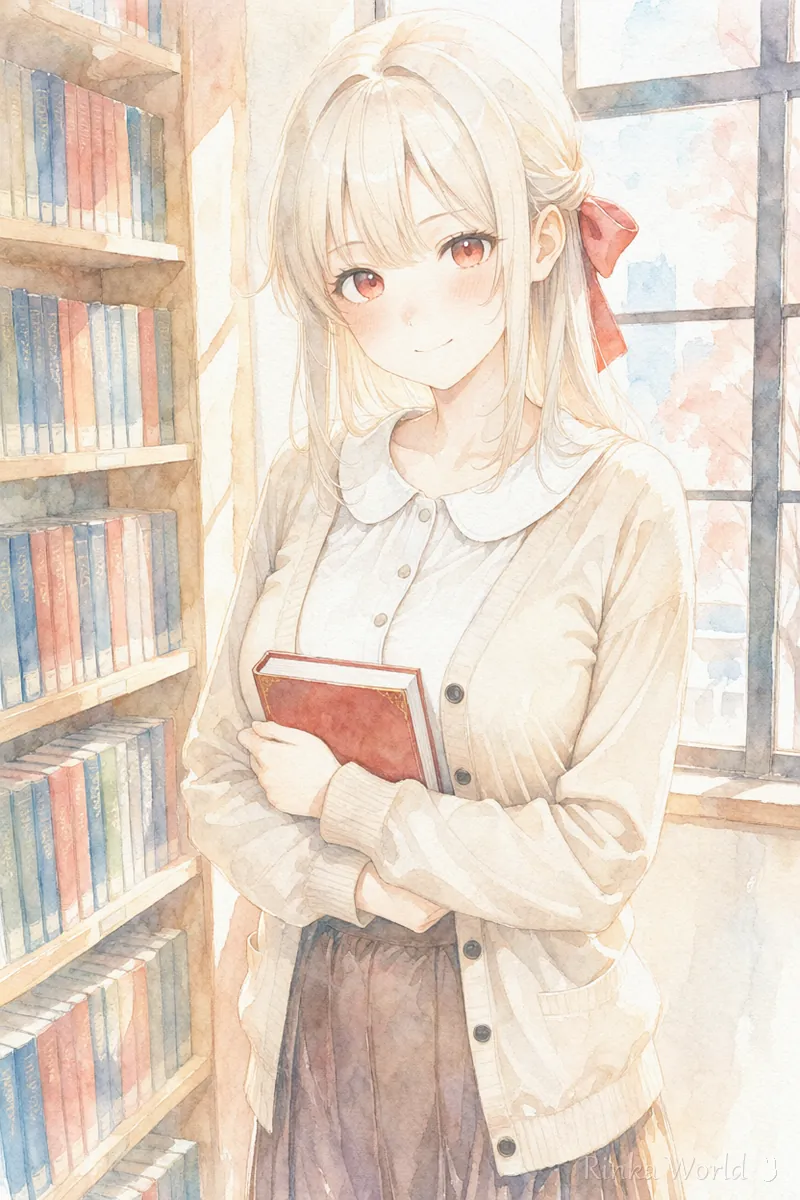
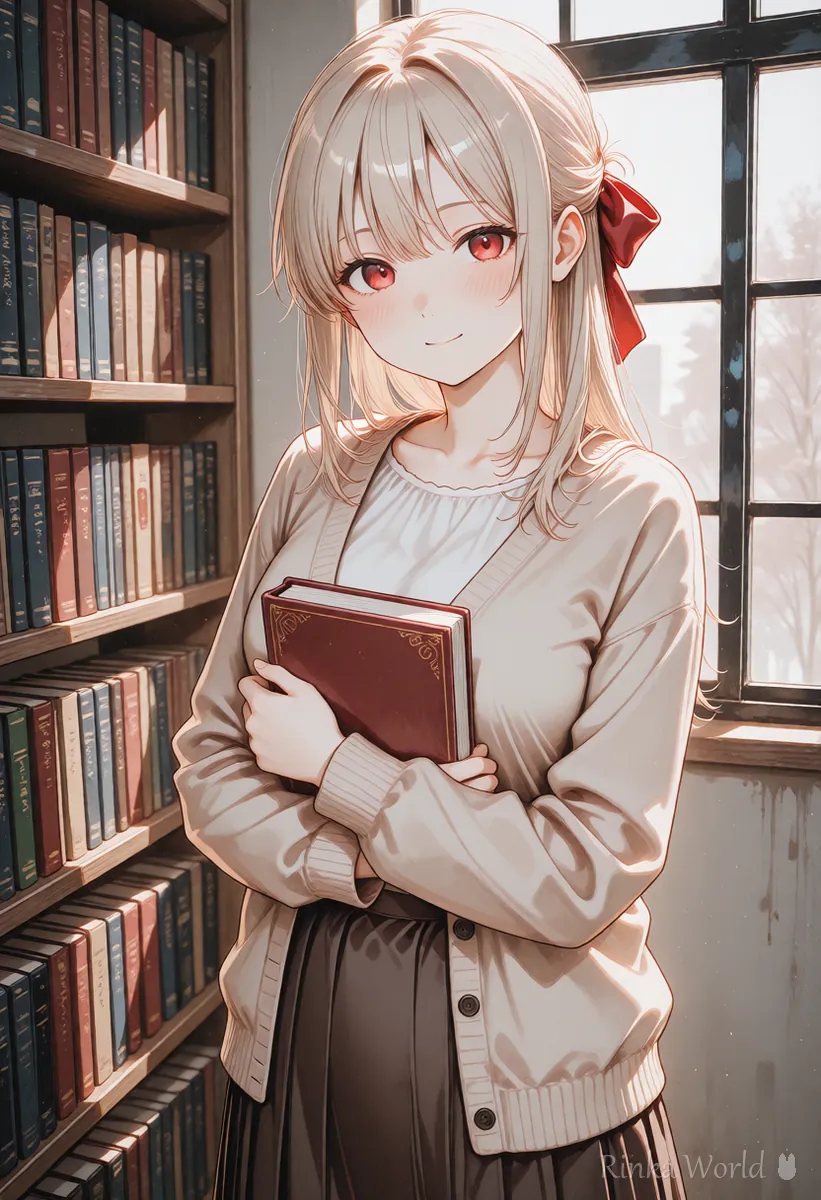
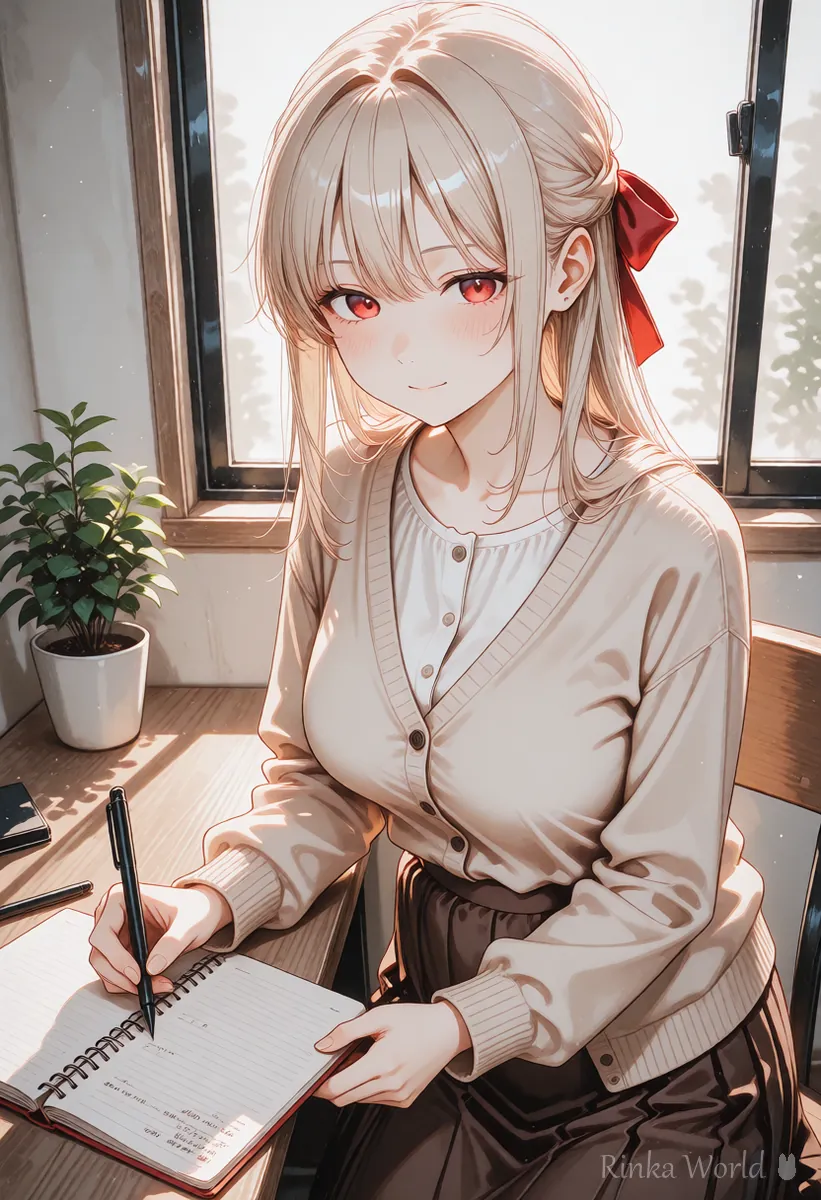
a cheerful anime-style girl with a red ribbon in her hair, smiling and holding a book to her chest, by a large library window, soft afternoon light, gentle watercolor illustrationa girl with a red ribbon hugging a book by a library window, soft afternoon light, watercolor illustrationRinka's tips
- Firefly may accept several languages, but fine details sometimes come through better in English. Try both and compare
- Lean either on the style options or on the style words in the prompt, not both in different directions
- Put what must be kept, such as number of people or clothing colors, early in the sentence
How do you ask with Generative Fill in Photoshop?
Select the area you want to change and write only what you want to add there.
Generative Fill redraws only inside the selected area. You do not need to describe the whole picture; writing just what to add, such as "a small cat sleeping", lets it blend with the surrounding light and color. To remove something, select it and run it with the prompt empty; it often fills the area with background (behavior changes between versions).
For how outpainting extends a picture beyond its edges, see How to Outpaint (Extend the Edges of an Image or Make It Wider) →
For how inpainting redraws just one part, see How to Use img2img and Inpaint (Fixing Only Part of an Image) →
What if Firefly does not give the picture you want? (Common mistakes and fixes)
Check the photo or art choice, overloaded wording and how you selected the area.
Can you use Firefly images commercially?
The conditions depend on the plan and terms, so check the official guidance before use.
Adobe presents Firefly as a service designed with commercial use in mind. However, the allowed uses, how generative credits work, and the information attached to generated images (such as content provenance records) can change. For work use, always check the current terms and plan. Do not make things that imitate real people or brands.
To compare it with other AI image generators, see AI Image Generators Compared (How to Choose by Type) →
FAQ
Frequently Asked Questions
Can I use Adobe Firefly in languages other than English?
Firefly is described as supporting prompts in multiple languages. Fine details sometimes work better in English, so try both and compare. Check the official site for current support.
Can Firefly make anime-style illustrations?
Choose an art-leaning content type and add words like anime style or illustration. Avoid asking by the names of specific works or animation studios.
What should I write for Generative Fill?
Write only what you want to add in the selected area; you do not need to describe the whole picture. To remove something, run it with the prompt empty and it usually fills with background.
Is Firefly free?
There may be a free allowance to try it, but it changes. Check prices and how credits work on the official site.
RINKA WORLD
Play in Rinka World
MORE